Viewing Assignees of a Module
Monitoring and assessing the progress of module assignees is crucial for effective course management within your LMS. This step-by-step guide will walk you through the process of viewing assignees of a module.
Step 1: Access Course Management
Begin by logging into your LMS account using your credentials.
Access the Admin Portal section from the main dropdown menu.
Choose the "Manage Courses" option to enter the course management interface.
.png "Screen Shot 2024-02-28 at 1.57.50 PM(2).png")
Step 2: Locate the Course
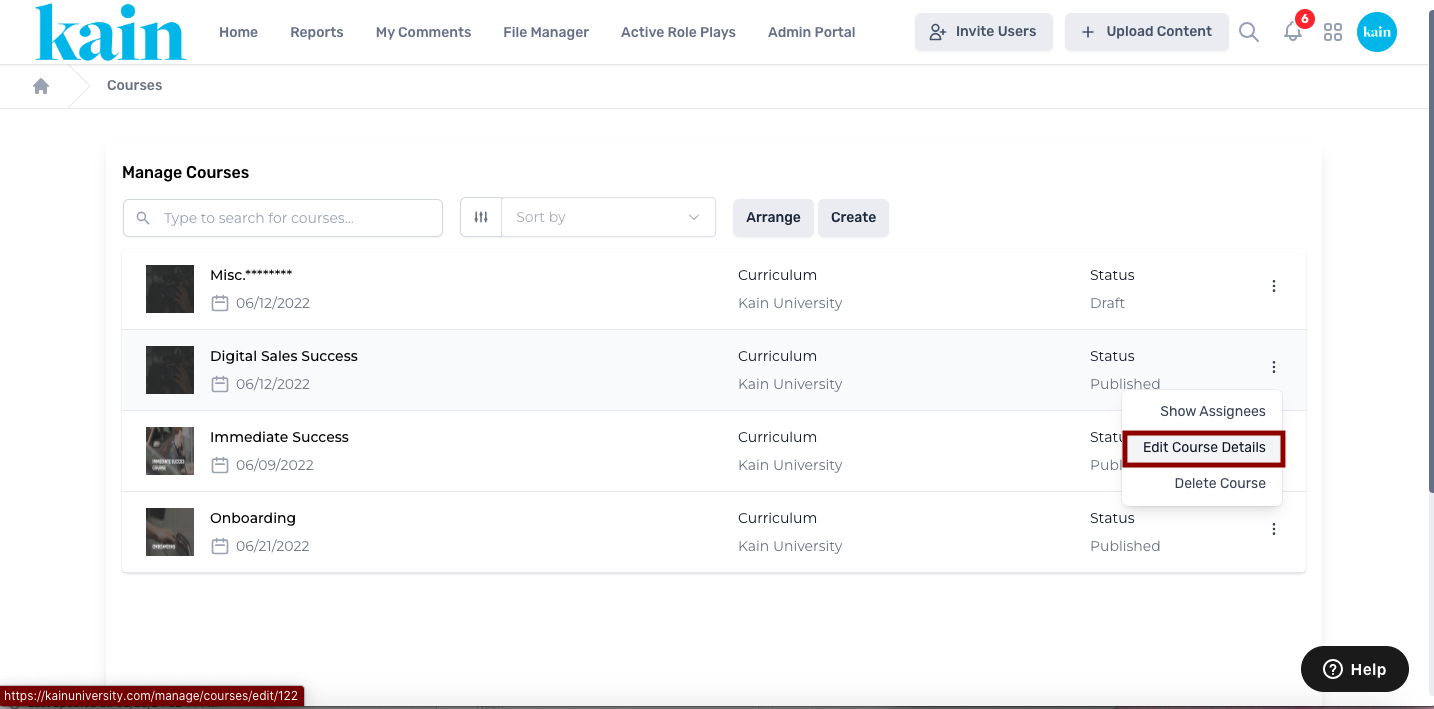
Inside the course management interface, find the course you wish to update.
Click on the “kebab menu” (three dots) next to the course.
From the dropdown menu, select "Edit Course Details"
This will open the course editing interface.
Step 2: Locate the Module:
Inside the course management interface, find the course containing the module for which you want to view assignees.
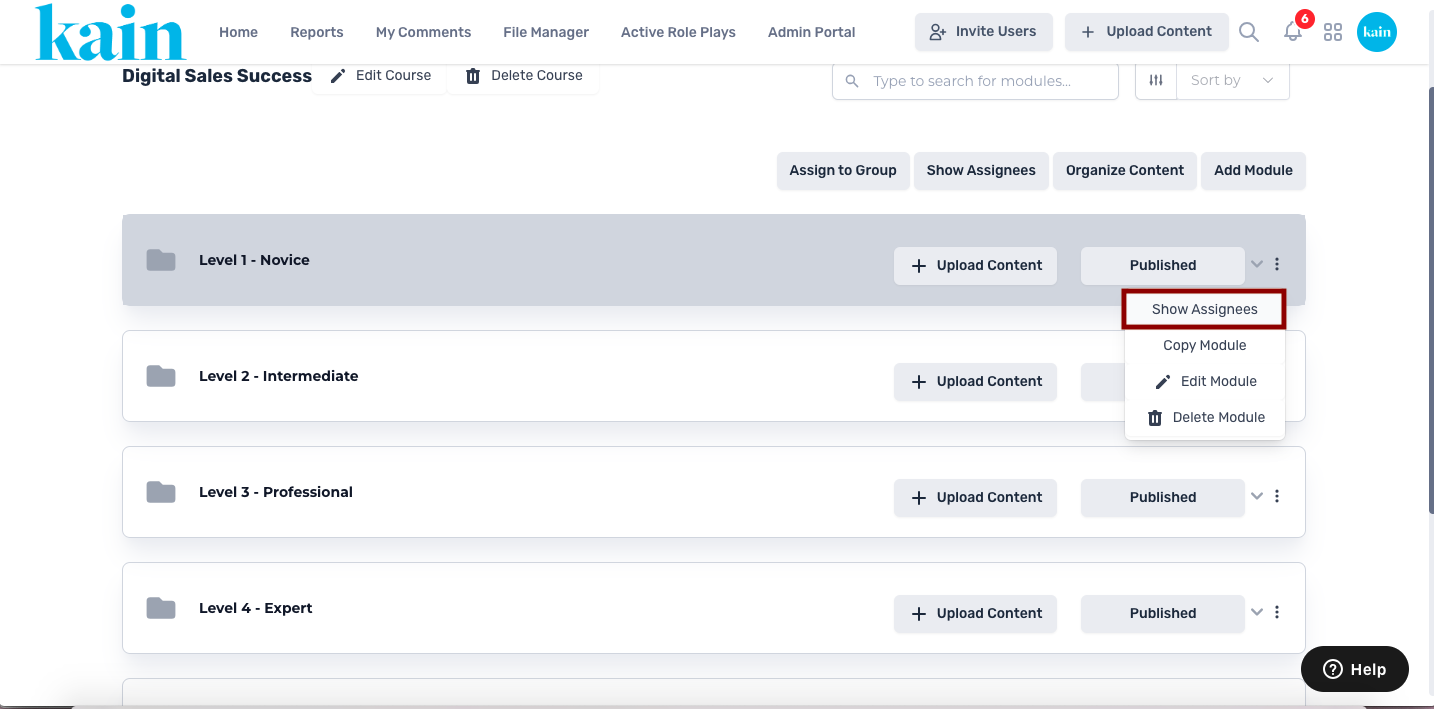
Click on the course title or the “kebab menu” (three dots) next to the course.
Step 3: Choose "Show Assignees"
From the dropdown menu, select "Show Assignees."
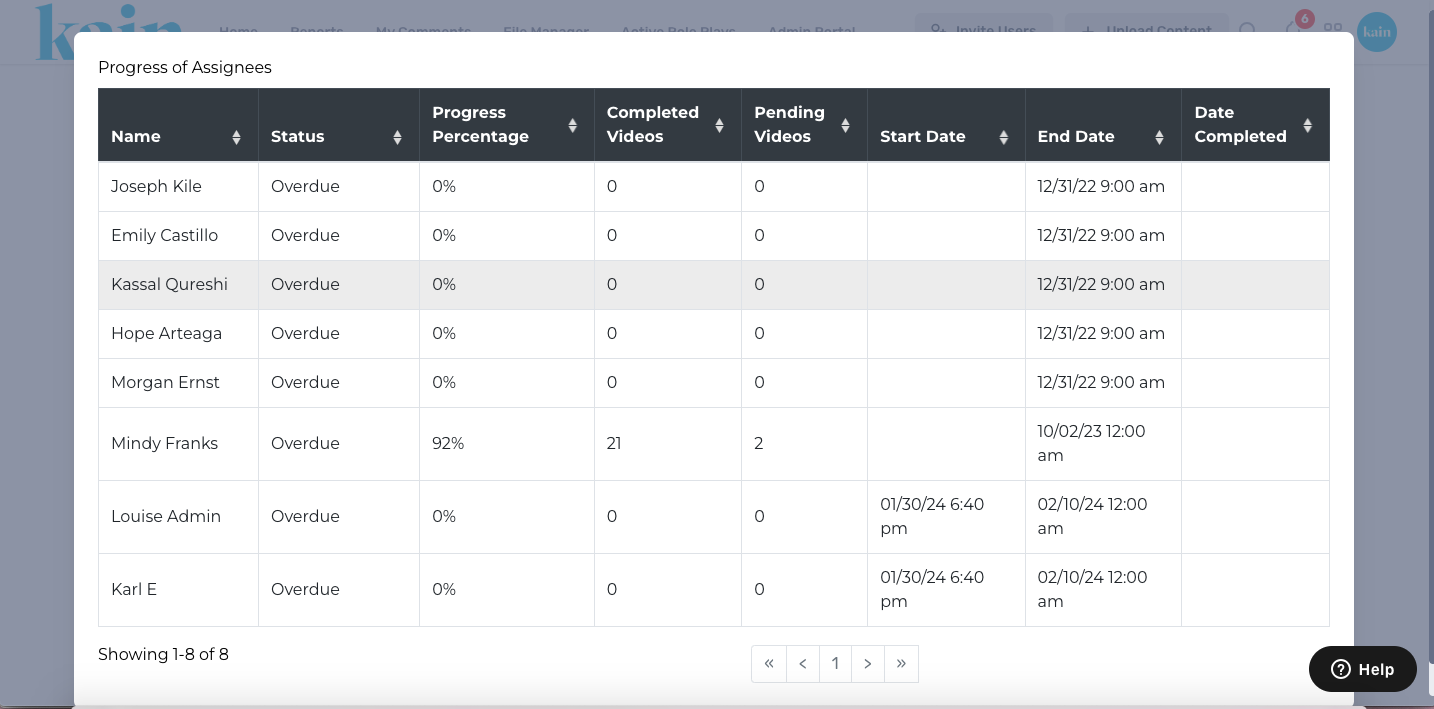
This action will open a pop-up window displaying details about assignees of the selected module.
Step 4: Review Assignee Details
In the pop-up window, you will see comprehensive information about the assignees, including:
Name of Assignees: List of individuals assigned to the module.
Status of the Course: Current status of the assigned course.
Progress Percentage: Percentage of completion for the module.
Completed Videos: Number of videos completed by each assignee.
Pending Videos: Number of videos pending completion.
Start Date: Date when the assignee started the module.
End Date: Deadline for module completion.
Date Completed: If applicable, the date when the module was completed.
Step 6: Close the Pop-Up
After reviewing the assignee details, close the pop-up window to return to the course management interface.