Copying a Module to a New Course
Assigning modules to courses is a pivotal step in tailoring learning content within your LMS. This step-by-step guide will walk you through the process of efficiently assigning modules to one or more courses.
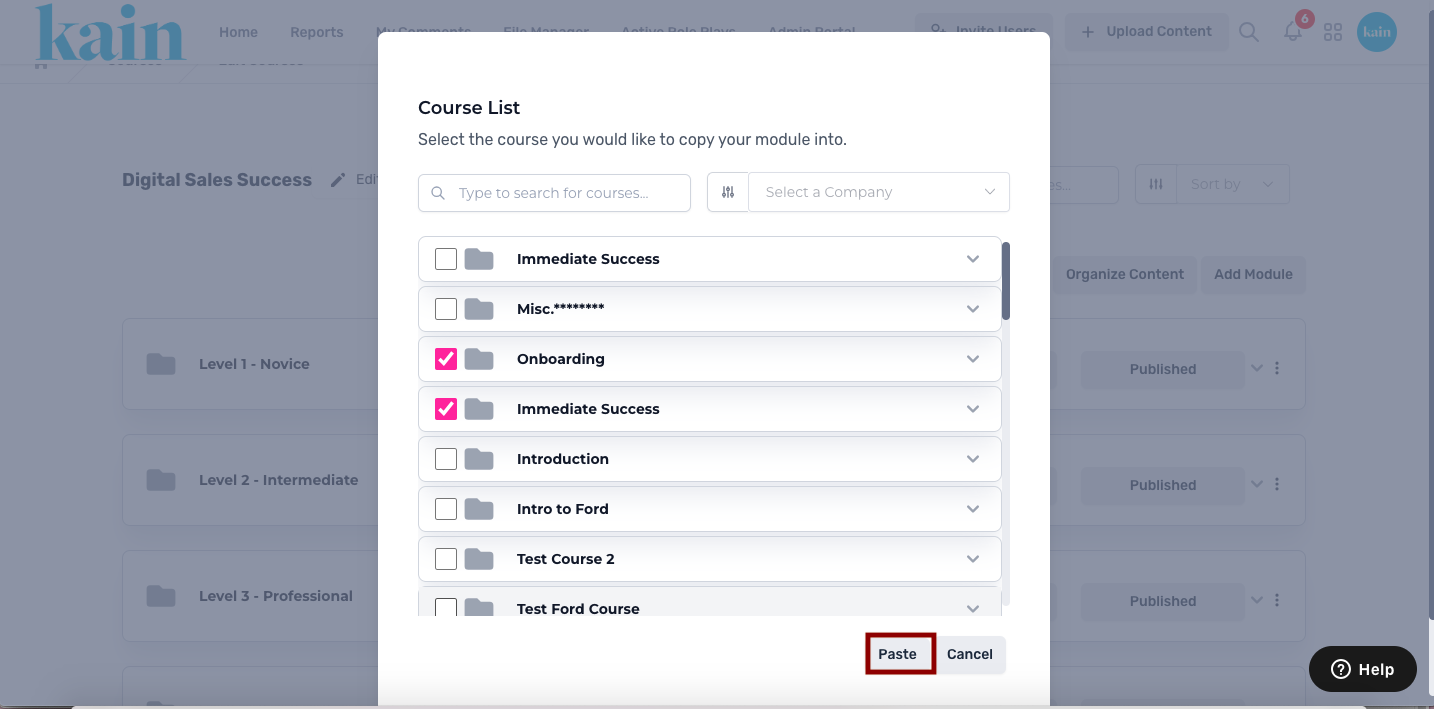
Step 1: Access Course Management
Begin by logging into your LMS account using your credentials.
Access the Admin Portal section from the main dropdown menu.
Choose the "Manage Courses" option to enter the course management interface.
.png "Screen Shot 2024-02-28 at 1.57.50 PM(2).png")
Step 2: Locate the Course
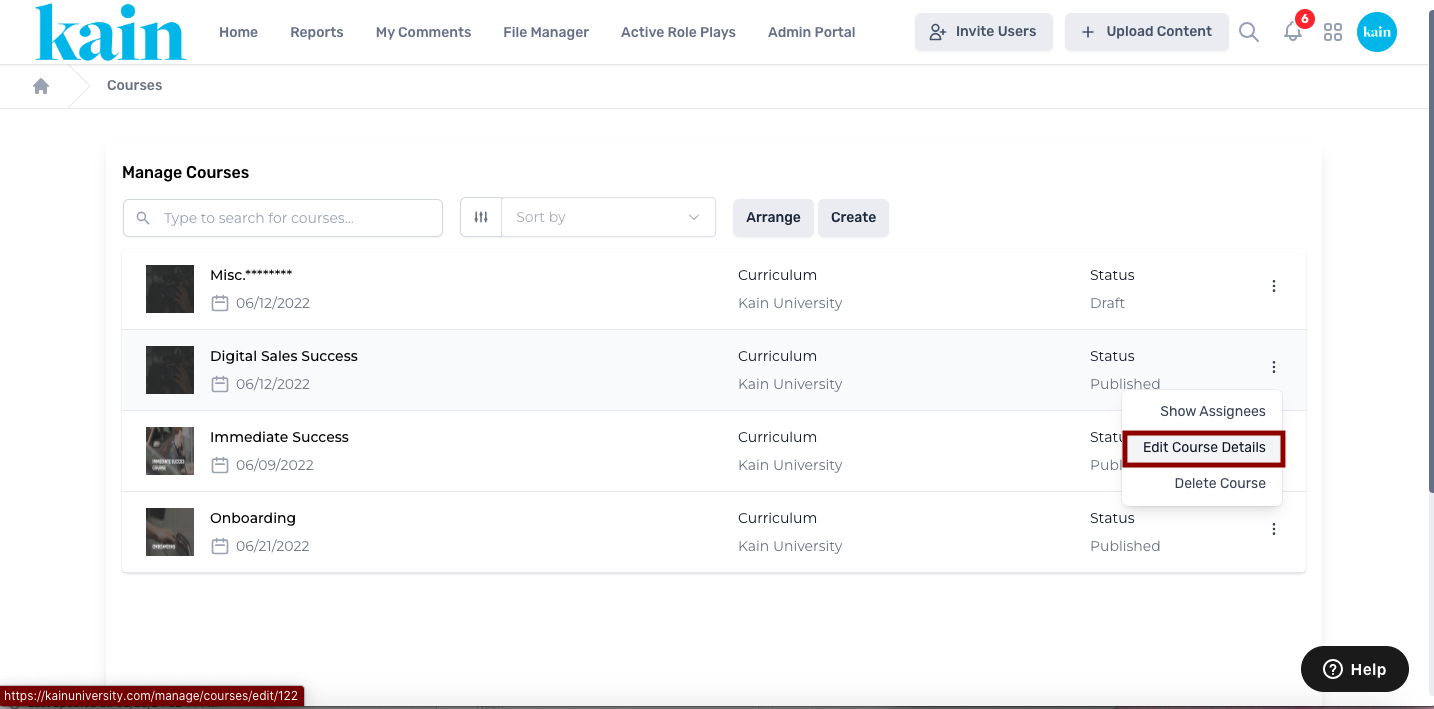
Inside the course management interface, find the course you wish to update.
Click on the “kebab menu” (three dots) next to the course.
From the dropdown menu, select "Edit Course Details"
This will open the course editing interface.
Step 2: Locate the Module:
Inside the course management interface, find the course containing the module for which you want to view assignees.
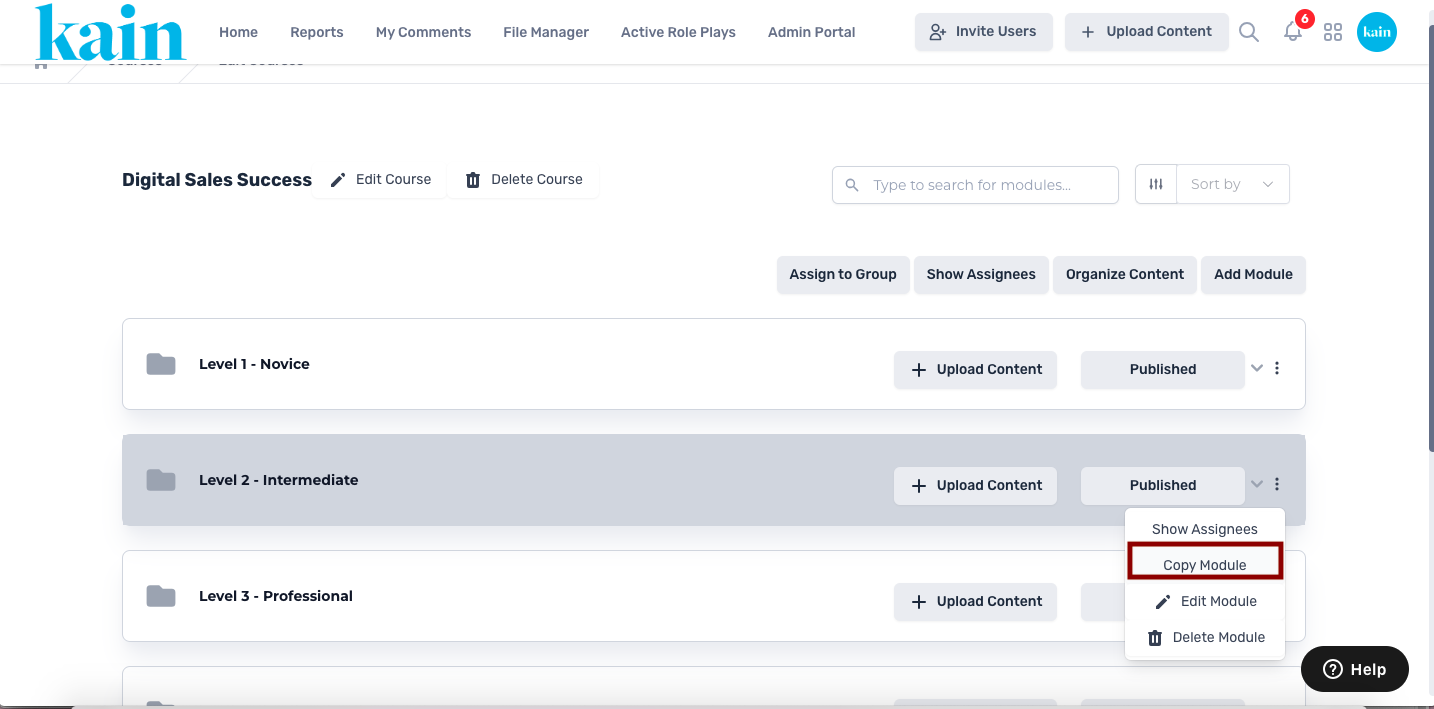
Click on the course title or the “kebab menu” (three dots) next to the course.
Step 3: Choose "Copy Module"
From the dropdown menu, select "Copy Module"
This will open the module assignment interface.
Step 4: Explore Available Courses
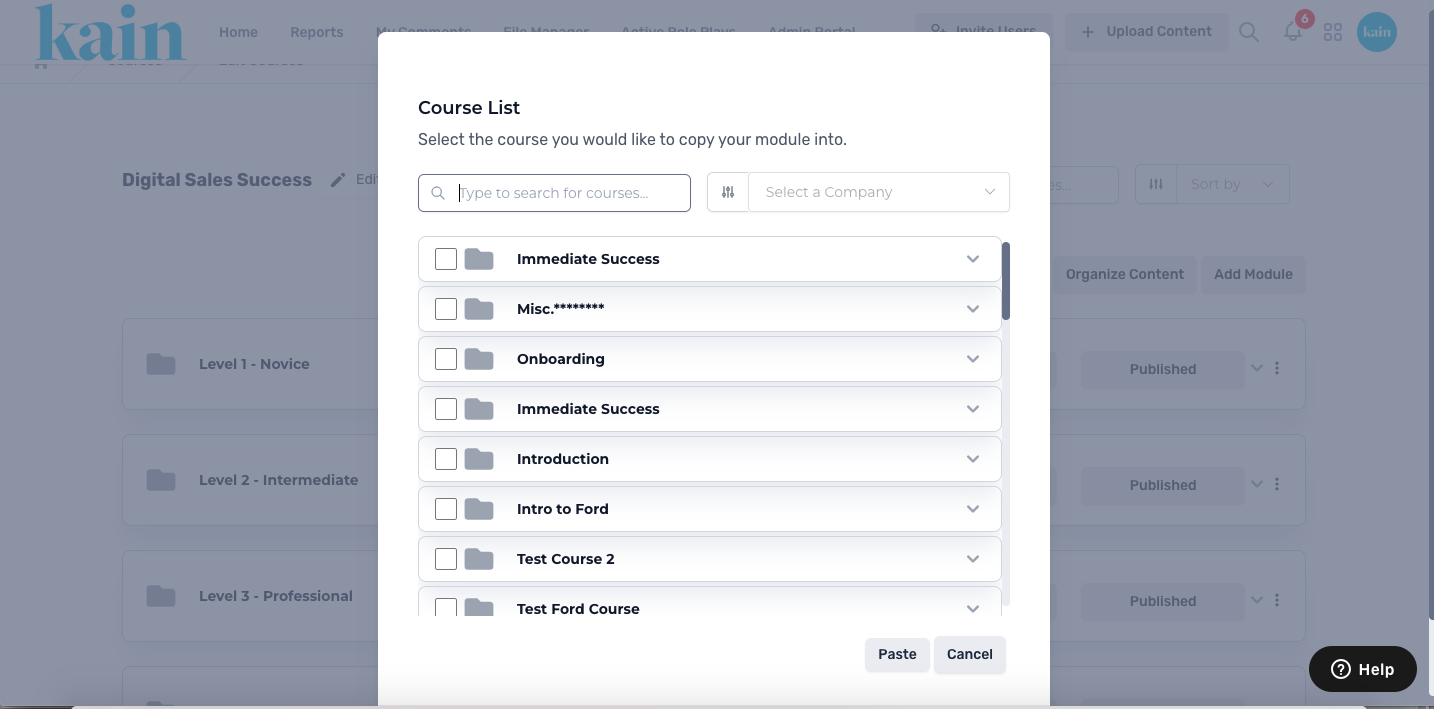
In the assignment interface, a pop-up window will appear, displaying a list of available courses.
Utilize the search box to quickly find specific courses.
Refine your search by selecting a company if applicable.
Step 5: Select Courses
Tick the box beside the course name for each course you want to assign the module to.
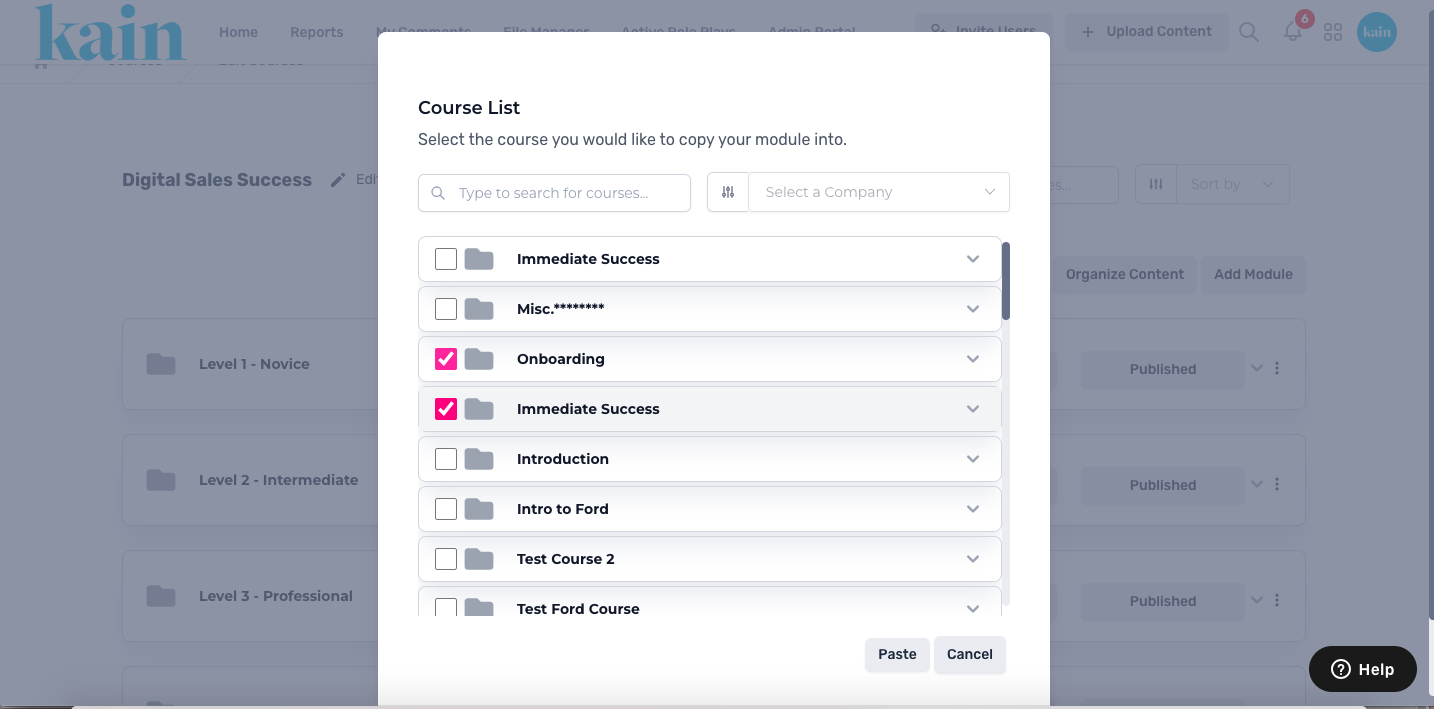
Step 6: Complete Assignment
After selecting the desired courses, click the “Paste” button to finalize the assignment.
This action completes the module assignment to the chosen courses.