Adding a New Module
Adding a new module to a course is a crucial step in enhancing the learning experience within your LMS. This step-by-step guide will walk you through the process of creating a new module within a course.
Step 1: Access Course Management
Begin by logging into your LMS account using your credentials.
Access the Admin Portal section from the main dropdown menu.
Choose the "Manage Courses" option to enter the course management interface.
.png "Screen Shot 2024-02-28 at 1.57.50 PM(2).png")
Step 2: Locate the Course
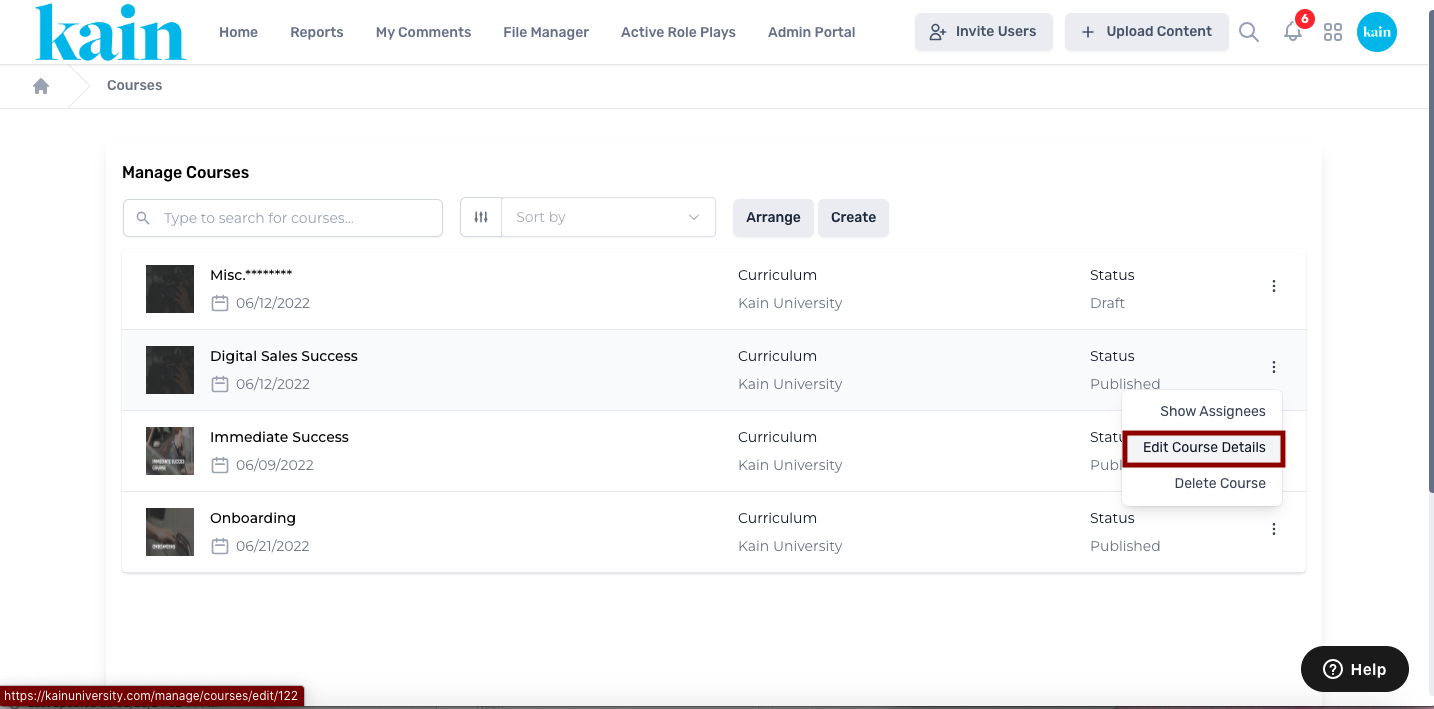
Inside the course management interface, find the course you wish to update.
Click on the “kebab menu” (three dots) next to the course.
From the dropdown menu, select "Edit Course Details"
This will open the course editing interface.
Step 3: Initiate Module Creation
Within the "Edit Course Details" section, locate and click on the “Add Module” button. This initiates the process of creating new modules for the course.
Step 4: Enter Module Details
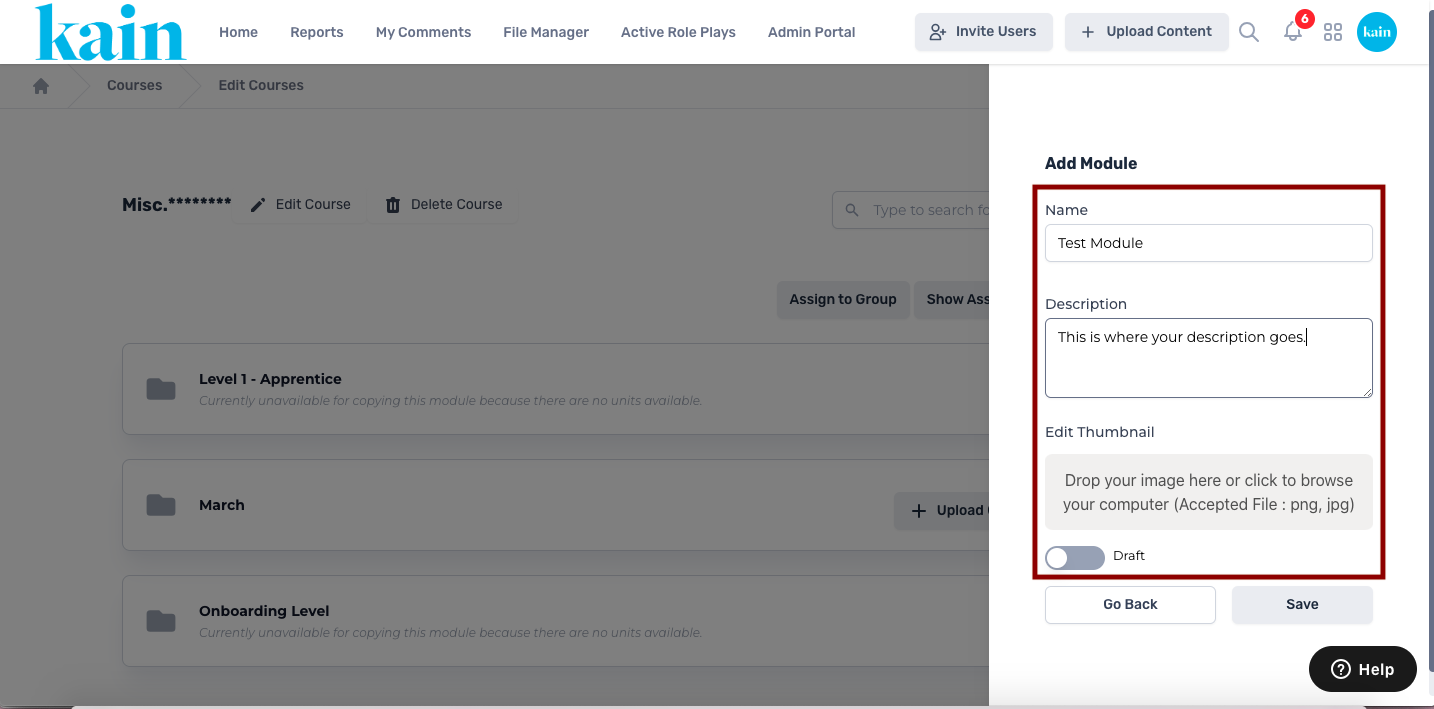
On the module creation window, provide essential information for the new module:
Module Title: Enter a clear and concise title for the module.
Description: Add a brief description to outline the content of the module.
Add a thumbnail picture for the module by dragginga nd dropping an image file from your computer.
Optional: set your module to “draft mode” by clicking on the toggle button for Draft.
Step 5: Save Module
Click on the “Save” button to save the new module.
This action finalizes the creation of the module within the selected course.
.png "Screen Shot 2024-02-28 at 3.47.44 PM(1).png")