Leaderboard Report
The Leaderboard showcases badges earned by users, reflecting their achievements and contributions to the LMS. The badges include:
Completion:
Completing 10 Videos
Completing 50 Videos
Completing 100 Videos
Completing an Assigned Video Before the Due Date
Completing an Assigned Course Before the Due Date
Completing an Assigned Module Before the Due Date
Completing a Playlist Before the Due Date
Creativity:
Uploading Own Content
Creating Own Playlist
Mentorship:
Assigning a Video to Peers
Assigning a Course to Peers
Assigning a Module to Other Users
Assigning a Playlist to Other Users
Collaboration:
Contributing and Replying to the Notes of Peers
Steps to Generate Leaderboard Report
Step 1: Log in to Your LMS Account
Open your web browser and navigate to the LMS website.
Enter your login credentials to access your account.
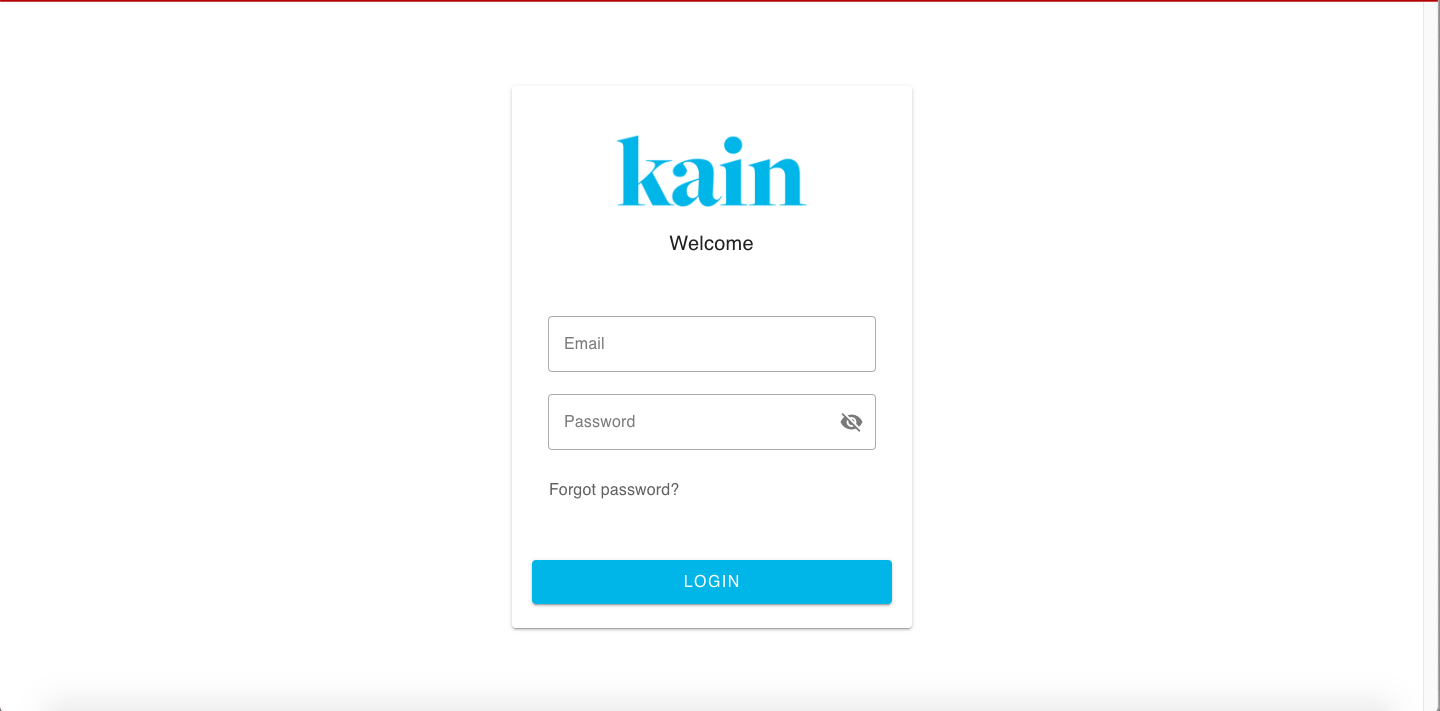
Step 2: Navigate to Leaderboard Section
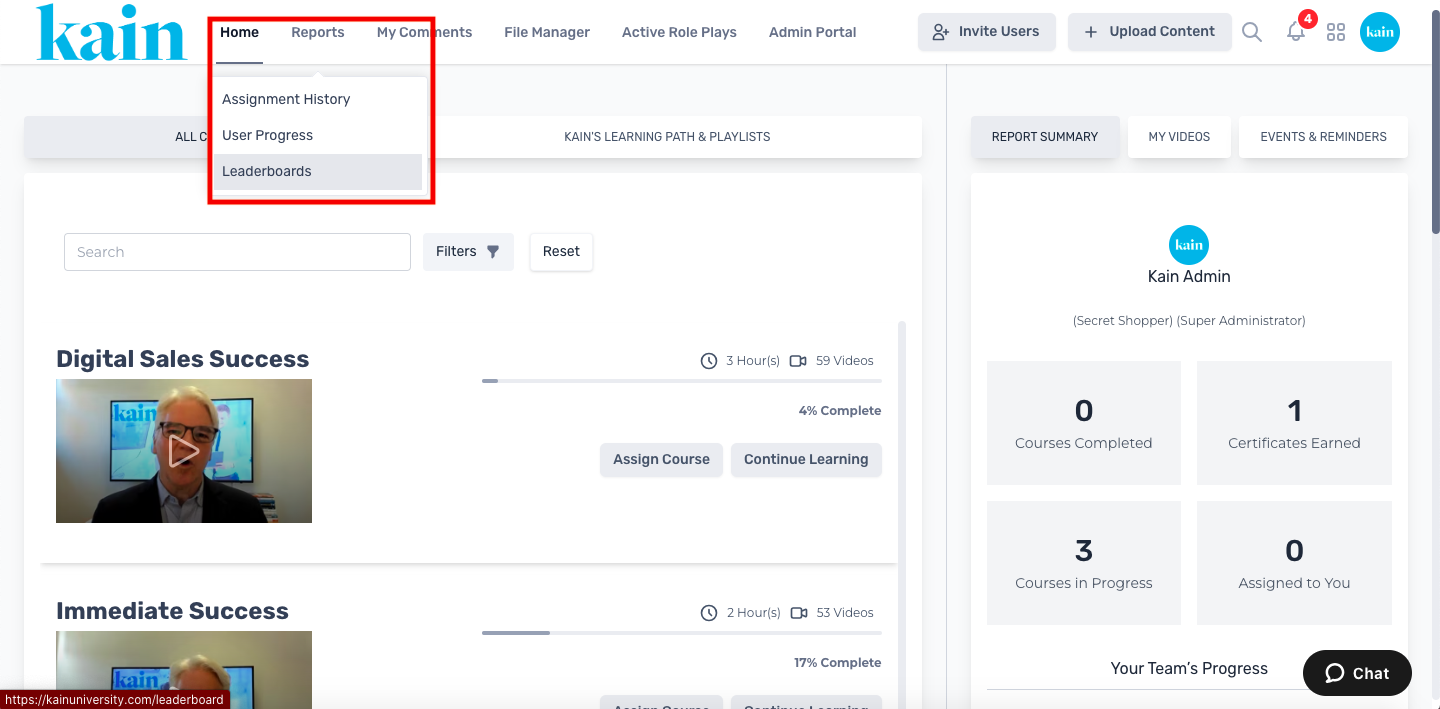
Once logged in, locate the "Reports" section on the LMS dashboard located at the top menu bar.
Hover your mouse until a dropdown menu appears and click on the Leaderboards button.
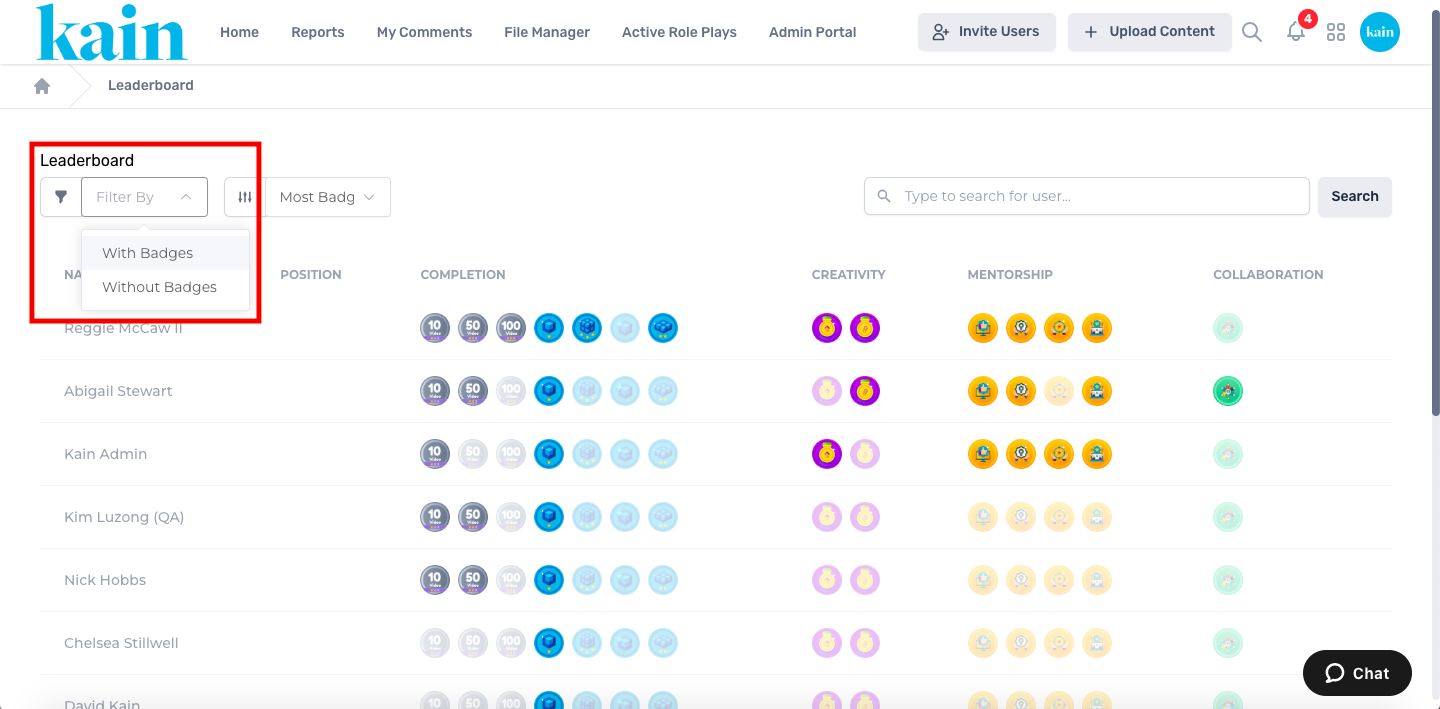
Step 3: Filter Leaderboard Data
Filter users by those With Badges or Without Badges.
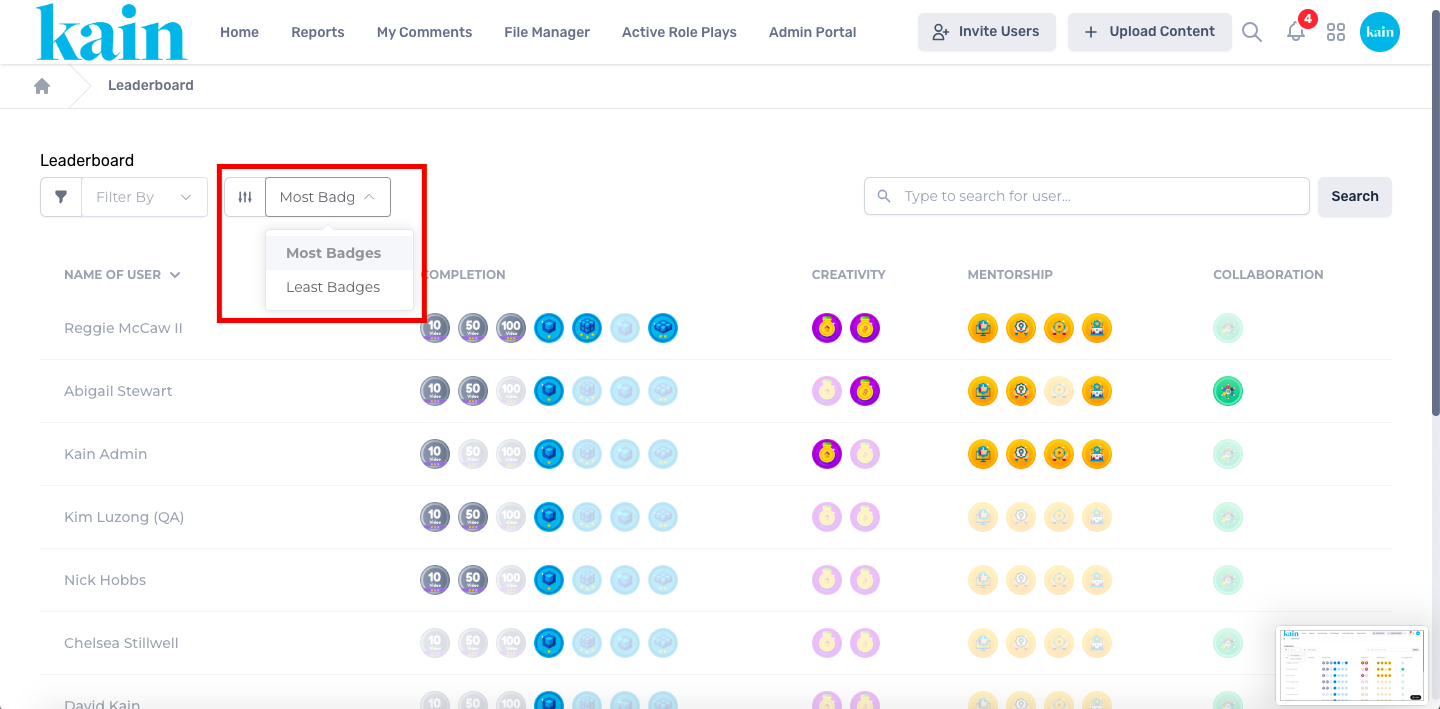
Sort the data by Users with Most Badges or Least Badges.
Use the search bar to find specific users.
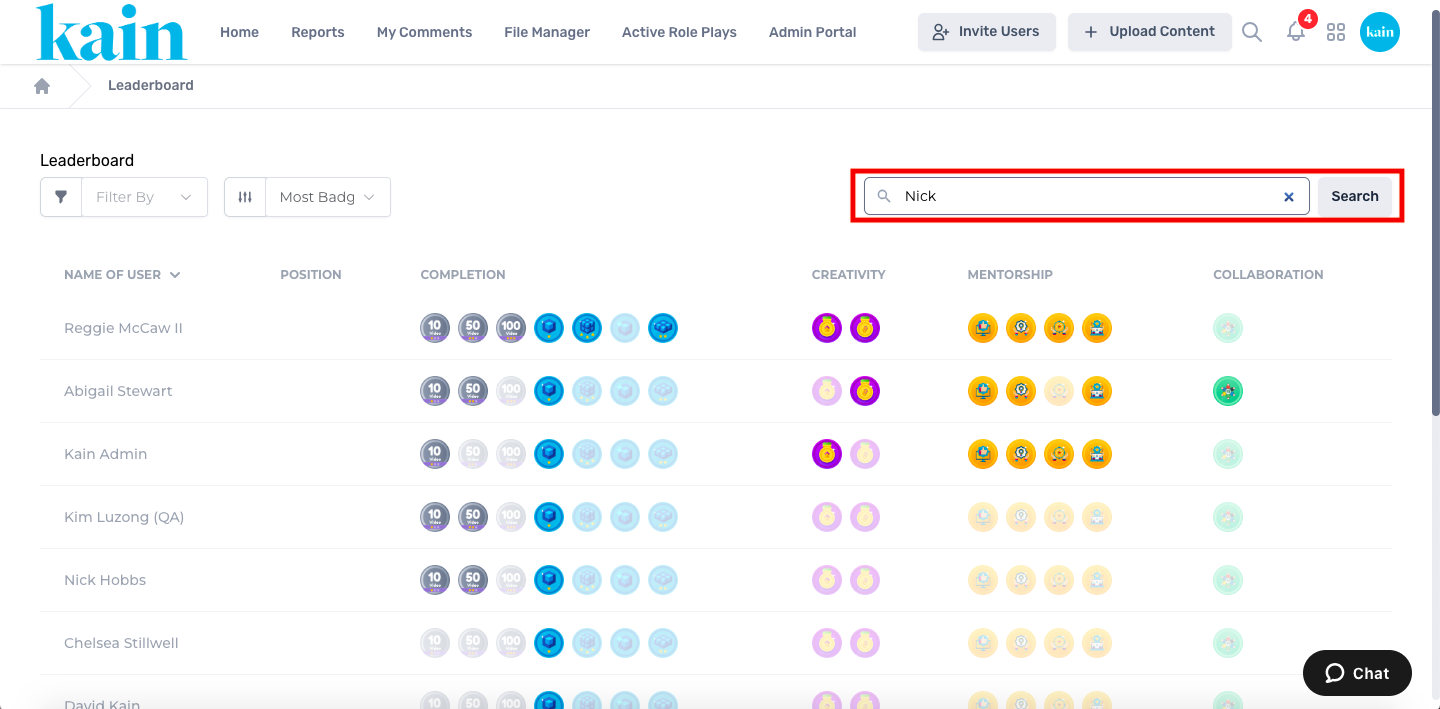
Step 3: Generate Report
Wait for the system to generate the Leaderboard results.
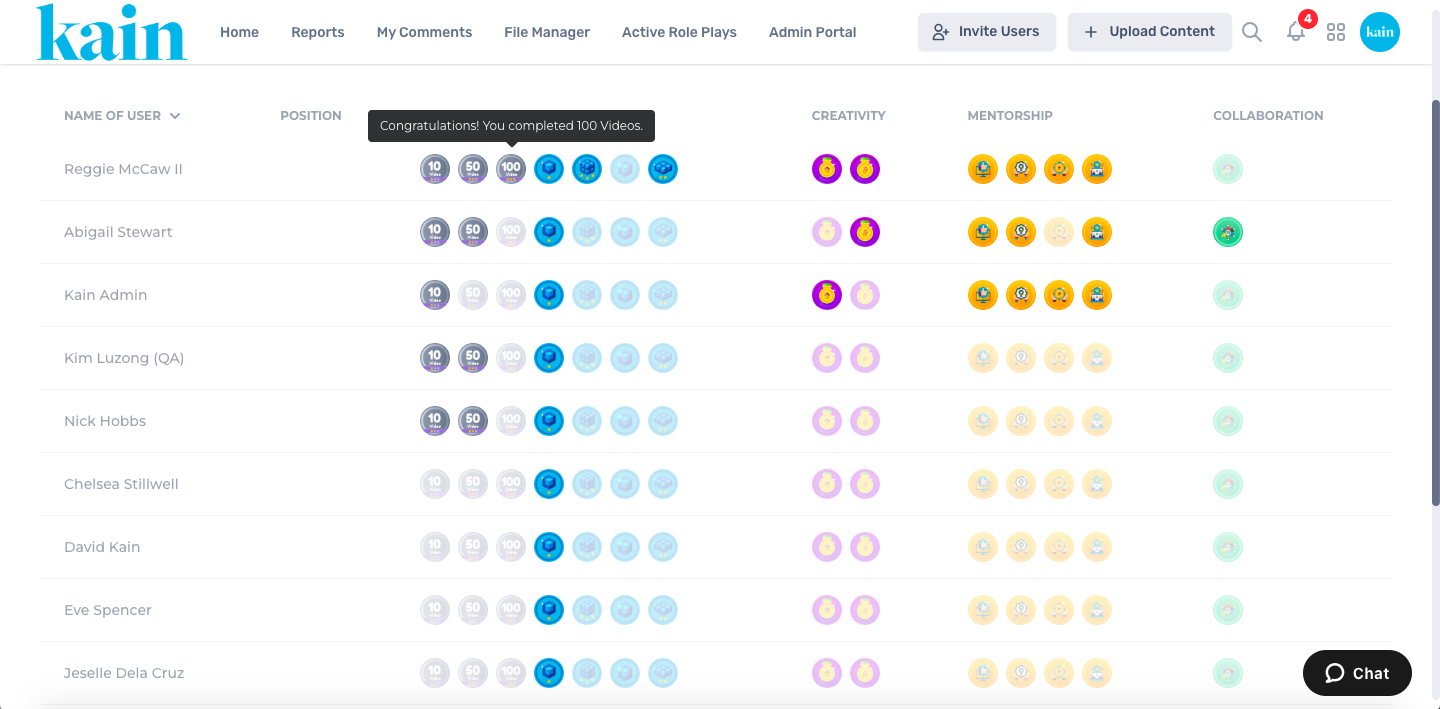
Review the Leaderboard report with the specified filters and data fields: Name of User, Position, Completion, Creativity, Mentorship, and Collaboration.