Editing a Playlist
Editing a playlist in your LMS allows you to update content, adjust parameters, and tailor the learning experience to meet evolving needs.
Step 1: Access the Playlists
On the LMS dashboard, locate and click on the “Learning Path & Playlists” button.
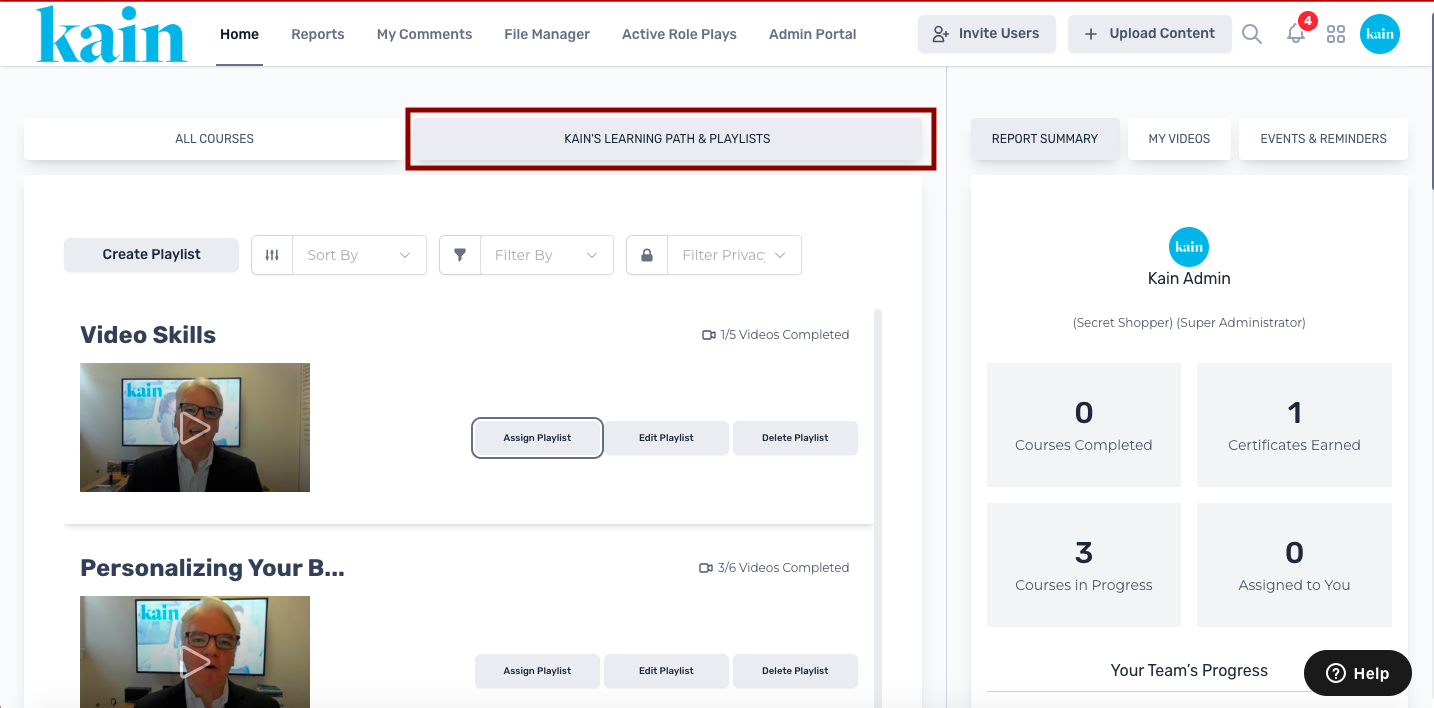
Select a playlist you want to assign by scrolling down.
Once you've located the playlist you wish to assign, click the “Edit Playlist” button.
Step 4: Modify Playlist Details
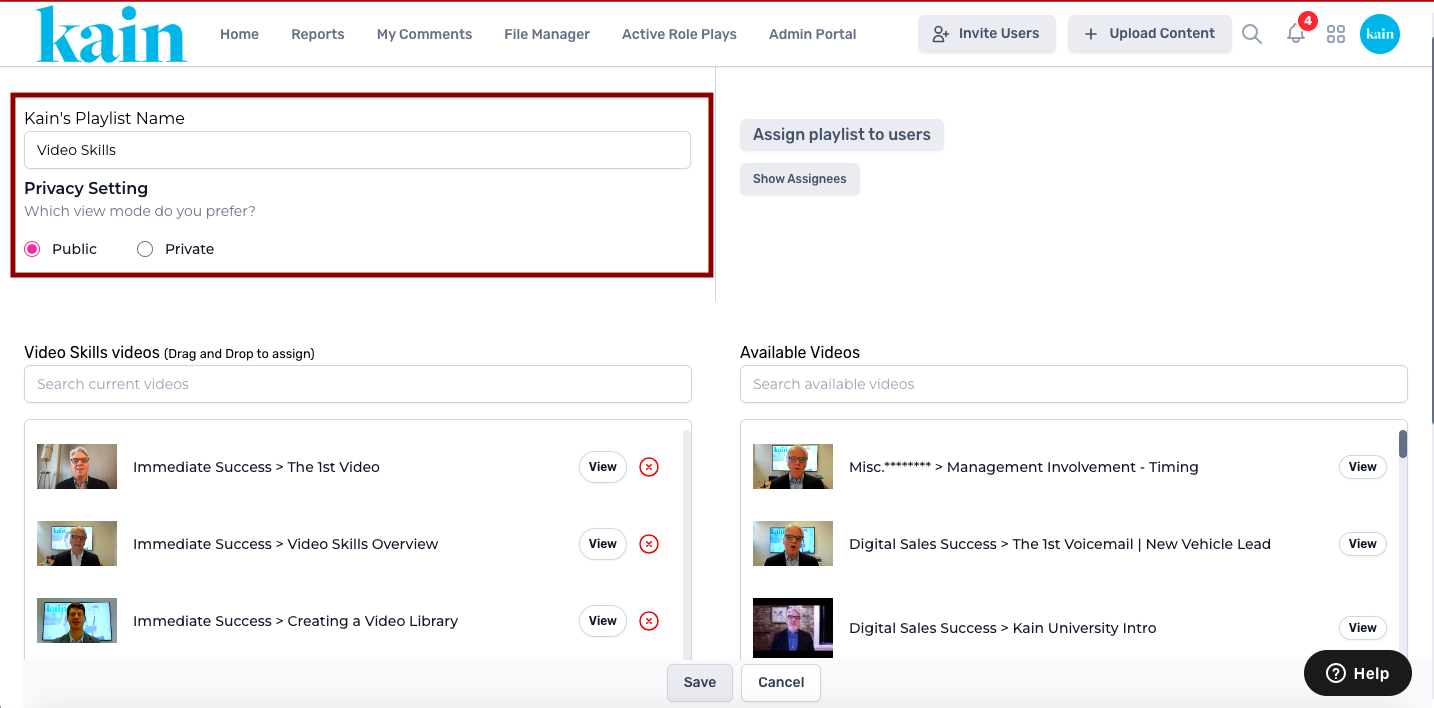
Update the playlist details as needed. This may include:
Playlist Title: Change the title of the playlist.
Privacy Settings: Change the view mode to “Public” or “Private”.
Content: Add or remove specific videos by dragging and dropping them
Parameters: Adjust settings like start/end dates or access permissions.
Step 5: Save Changes
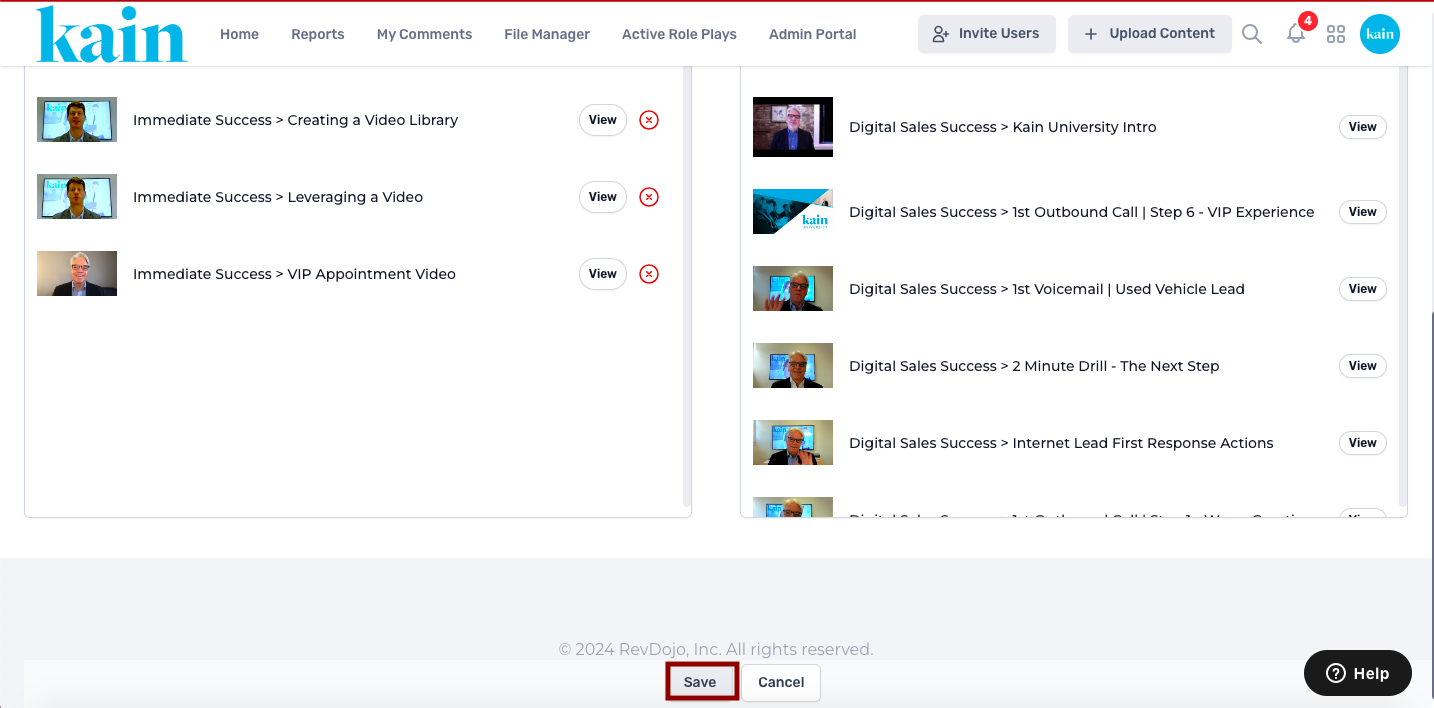
After making the necessary modifications, save the changes by clicking the “Save” button.
Step 6: Confirm Changes
Confirm that the changes have been successfully applied by checking the playlist details. Ensure that the playlist reflects the updated information.