Assigning a Playlist
Assigning a playlist in your Learning Management System (LMS) is a key step in ensuring that learners have access to curated sets of content aligned with their learning objectives.
Step 1: Access the Playlists
On the LMS dashboard, locate and click on the “Learning Path & Playlists” button.
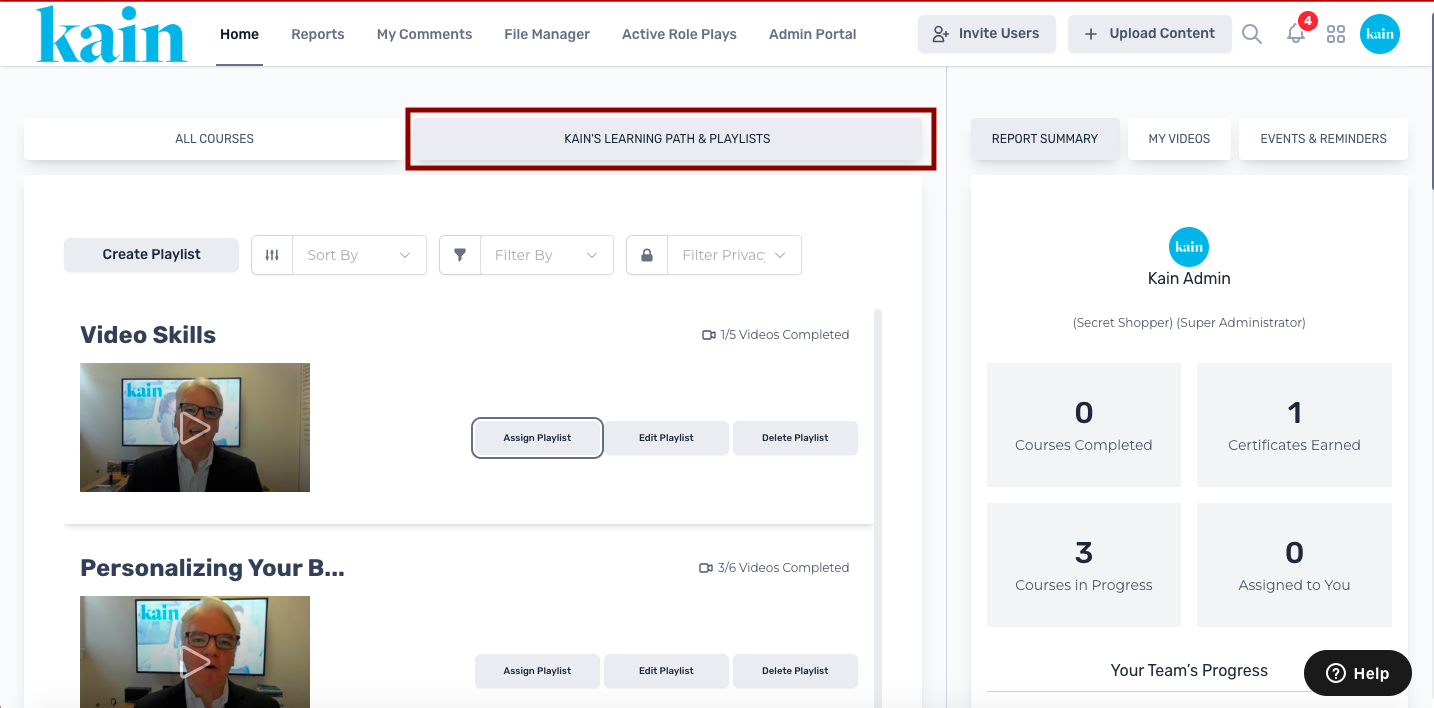
Select a playlist you want to assign by scrolling down.
Once you've located the playlist you wish to assign, click the “Assign Playlist” button.
.png "Screen Shot 2024-02-23 at 2.00.45 PM(1).png")
Step 2: Set the Parameters
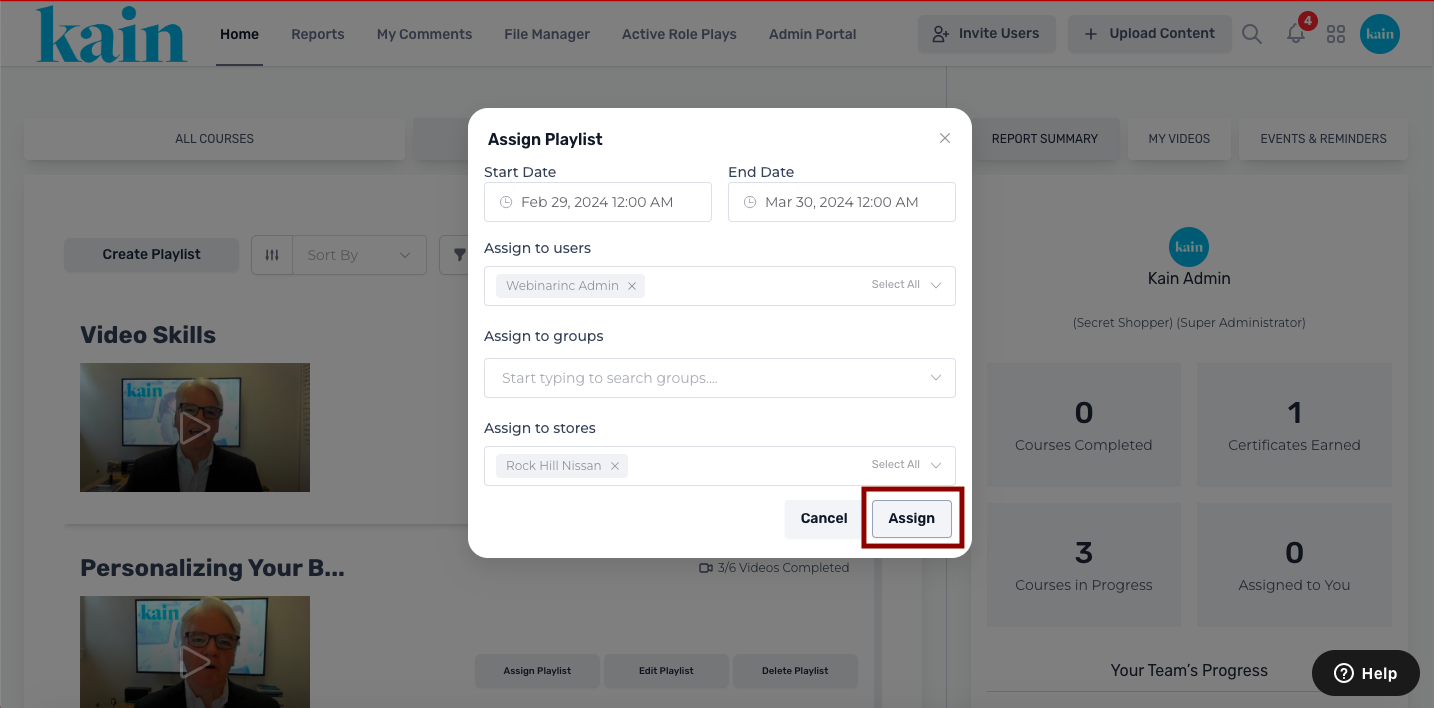
A pop-up window will appear, allowing you to set parameters such as start/end dates and specify the target audience.
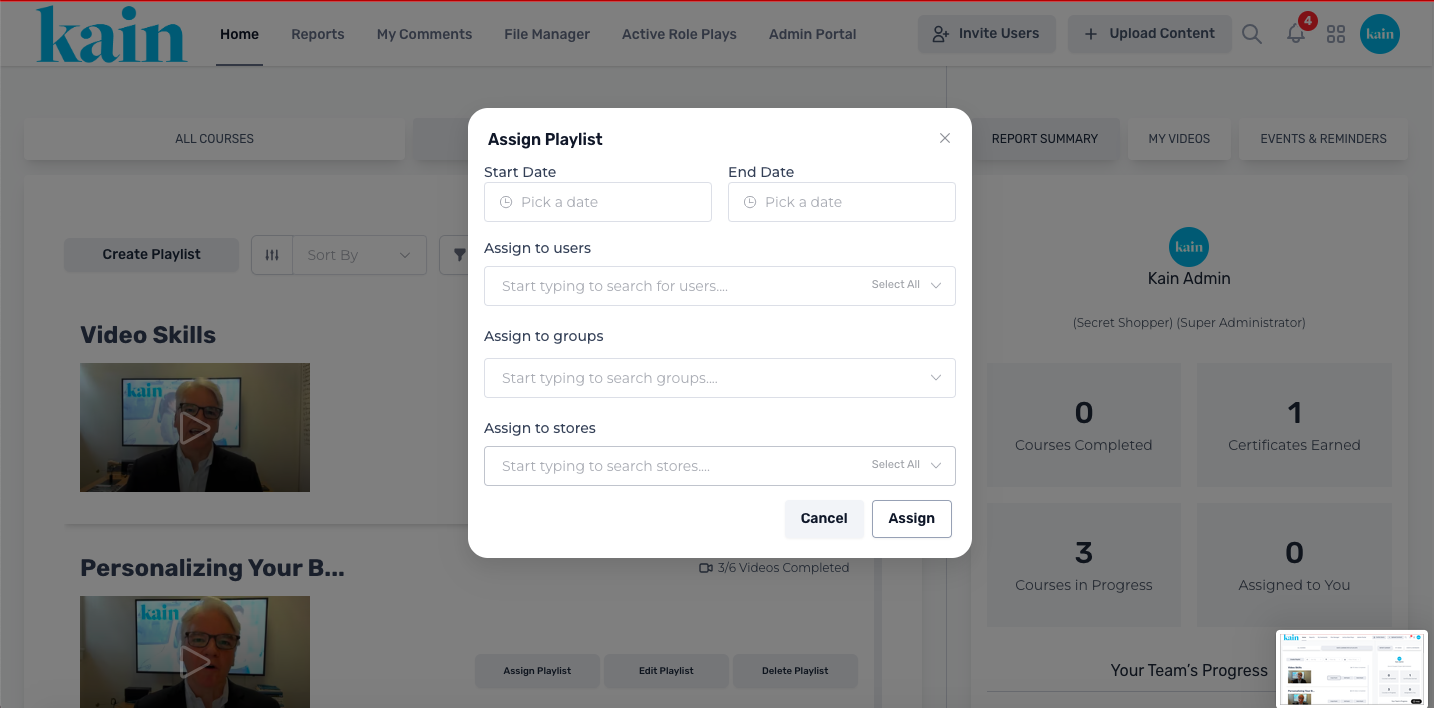
Pick a Start Date and an End Date for the playlist availability.
Choose the Users you want to assign the playlist to from the dropdown menu. Alternatively, use the “Select All” button on the right side of the dropdown box.
Select the Groups you want to assign the playlist to from the dropdown menu. You can also use the “Select All” button on the right side of the dropdown box.
Pick the Stores you want to assign the playlist to from the dropdown menu. The “Select All” button can be used on the right side of the dropdown box.
Step 3: Confirm Assignment
Review your selections to ensure you've chosen the right Users, Groups, and/or Stores to assign the playlist.
Click the “Assign” button on the bottom right corner of the pop-up window to confirm the assignment.