Editing a Curriculum
Efficiently editing a curriculum in your LMS ensures that learning paths remain relevant and aligned with organizational objectives.
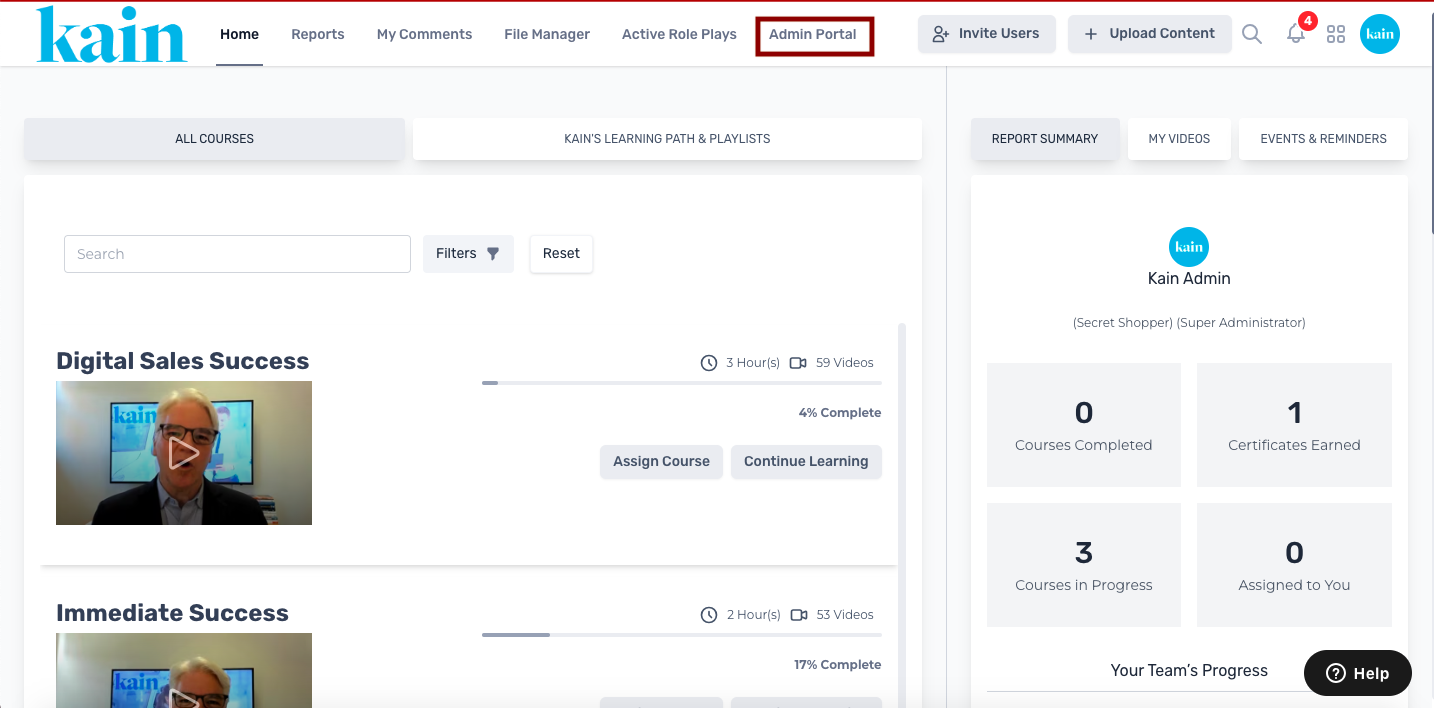
Step 1: Access the Admin Portal
Log in to your LMS account and navigate to the Admin Portal section.
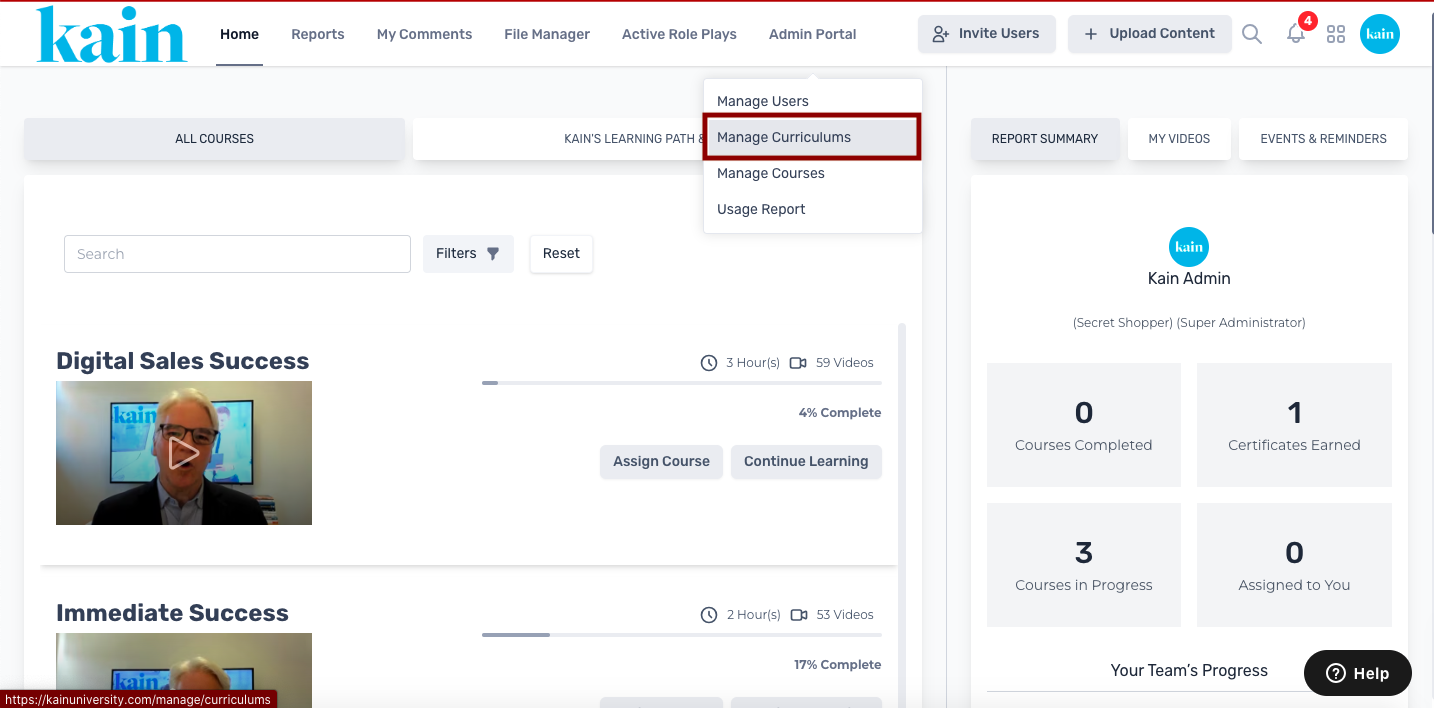
Step 2: Choose "Manage Curriculums"
From the dropdown menu on the Admin Portal, select "Manage Curriculums."
Step 3: Locate the Curriculum
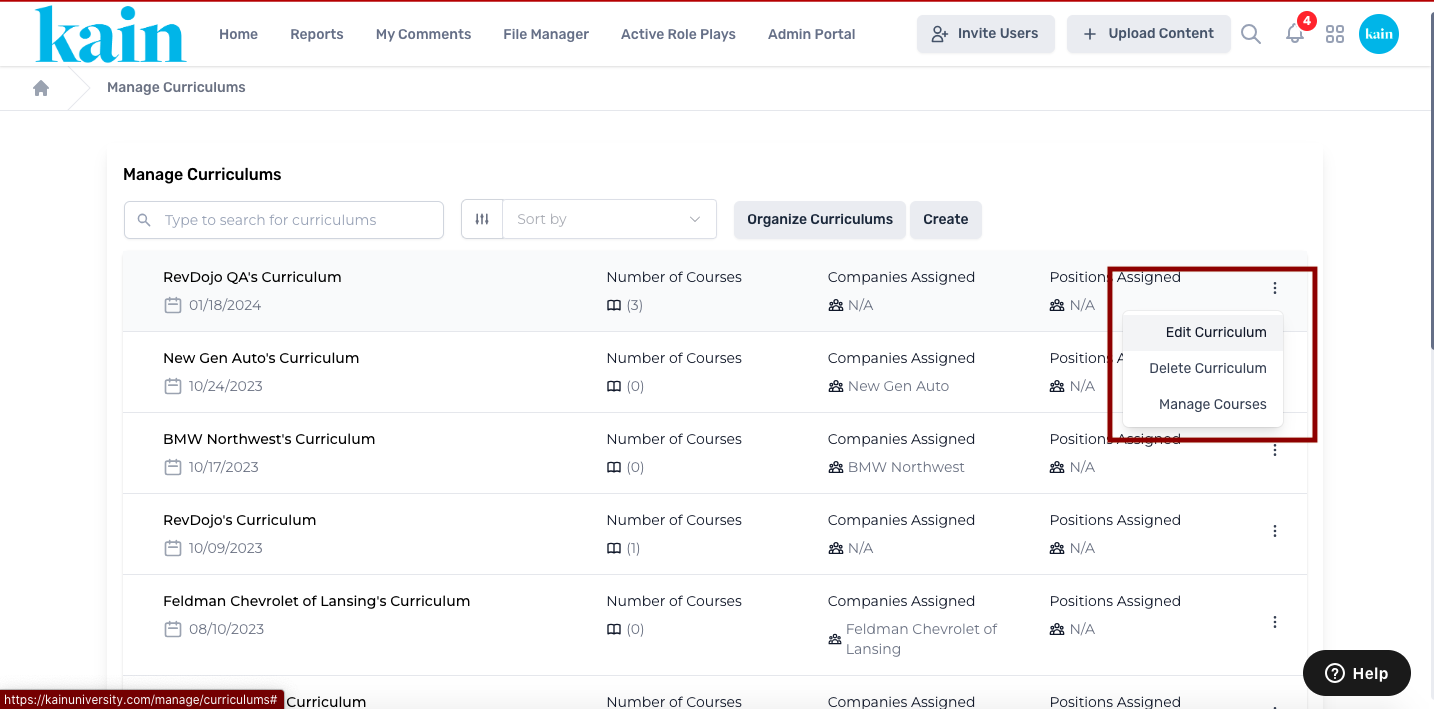
On the Curriculum Management page, find the curriculum you wish to edit. Utilize the search box by entering the curriculum name or scroll down to locate it.
Click on the “kebab menu” (three dots) next to the curriculum you want to edit.
On the dropdown menu, click on “Edit Curriculum.”
Step 4: Edit Curriculum Details
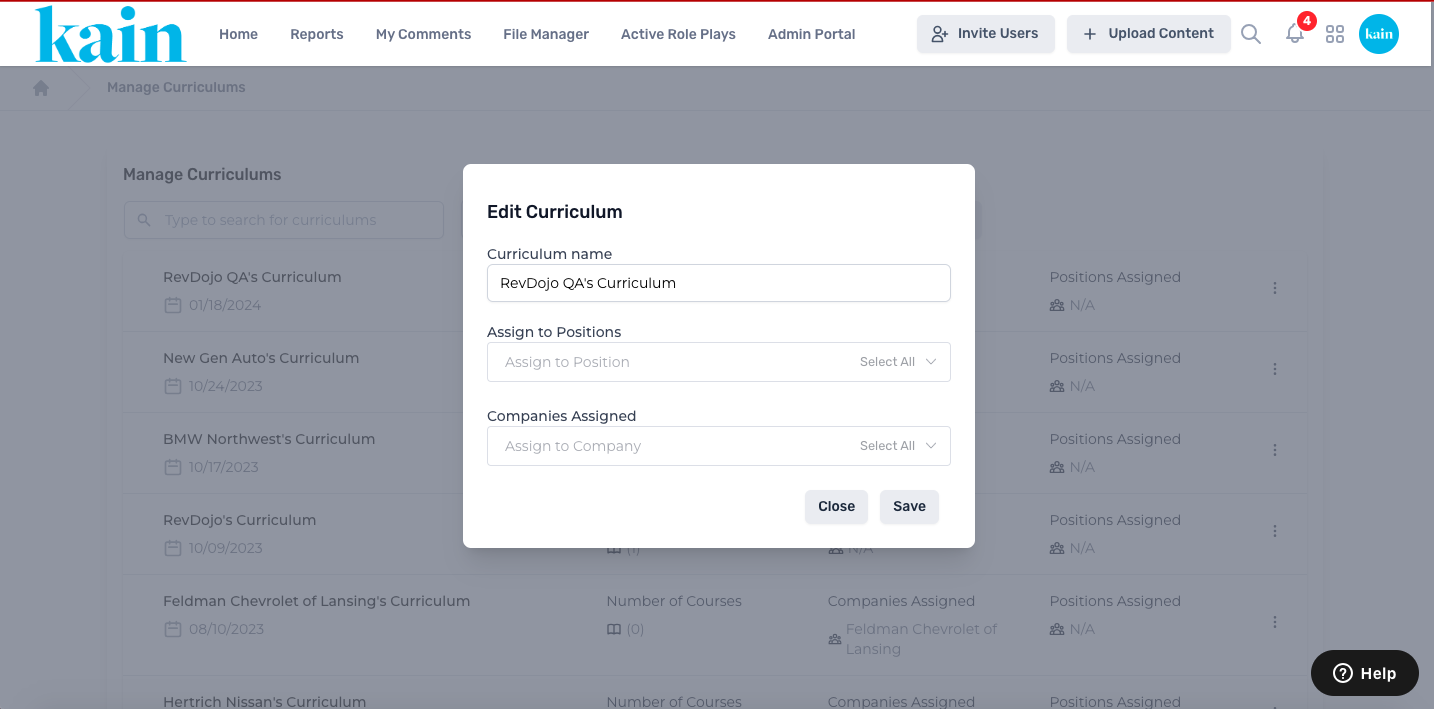
On the pop-up screen, you will see the current details of the curriculum.
Modify the necessary details:
Curriculum Name: Edit the name of the curriculum.
Assign to Position: Adjust the positions or roles associated with this curriculum.
Assign to Company: Modify the companies to which this curriculum is applicable.
Step 5: Save Changes
After editing the curriculum details, click the "Save" button to apply and save the changes.
.png "Screen Shot 2024-02-23 at 3.21.42 PM(1).png")