Creating a New Group
Creating a new group within your LMS is a fundamental step in organizing learners and fostering collaborative learning experiences. Here’s how you can create a new group, whether on the Dashboard or the Group Interface.
Creating a New Group on the Dashboard
Step 1: Access the Dashboard
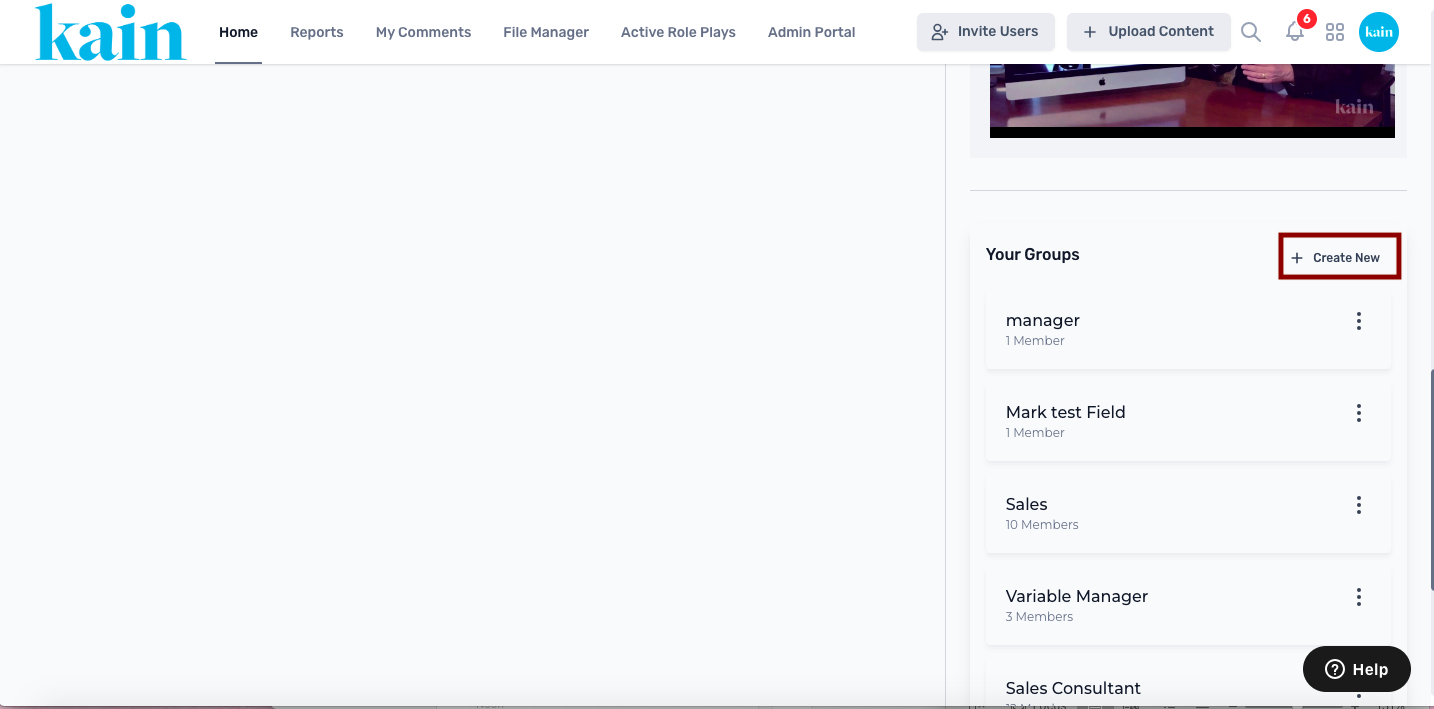
Log in to your LMS account, and from the Dashboard, scroll down to the "Your Groups" section.
.png "Screen Shot 2024-02-29 at 2.28.43 PM(1).png")
Step 2: Initiate Group Creation
Click on the “Create New” button within the "Your Groups" section.
Step 3: Enter Group Details
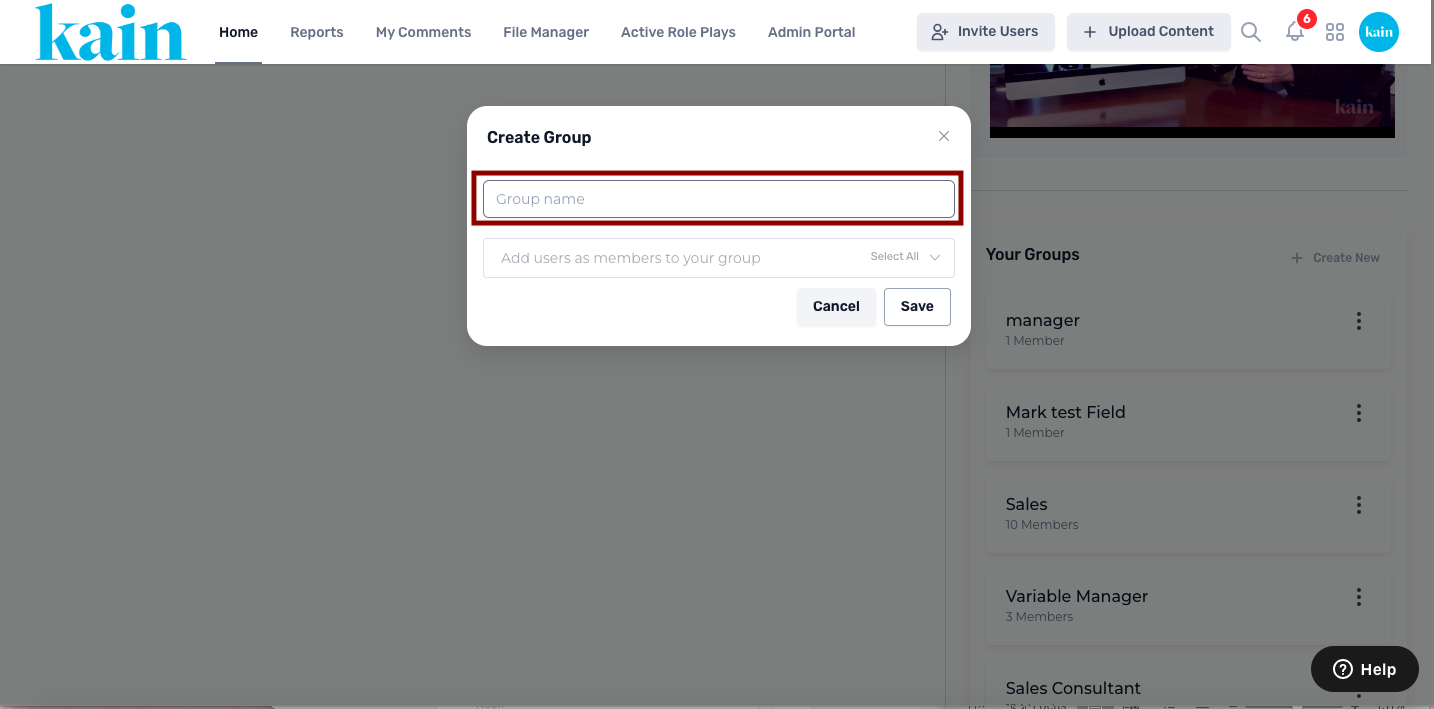
Provide a meaningful and concise name for the new group in the prompted field.
Step 4: Add Users as Members
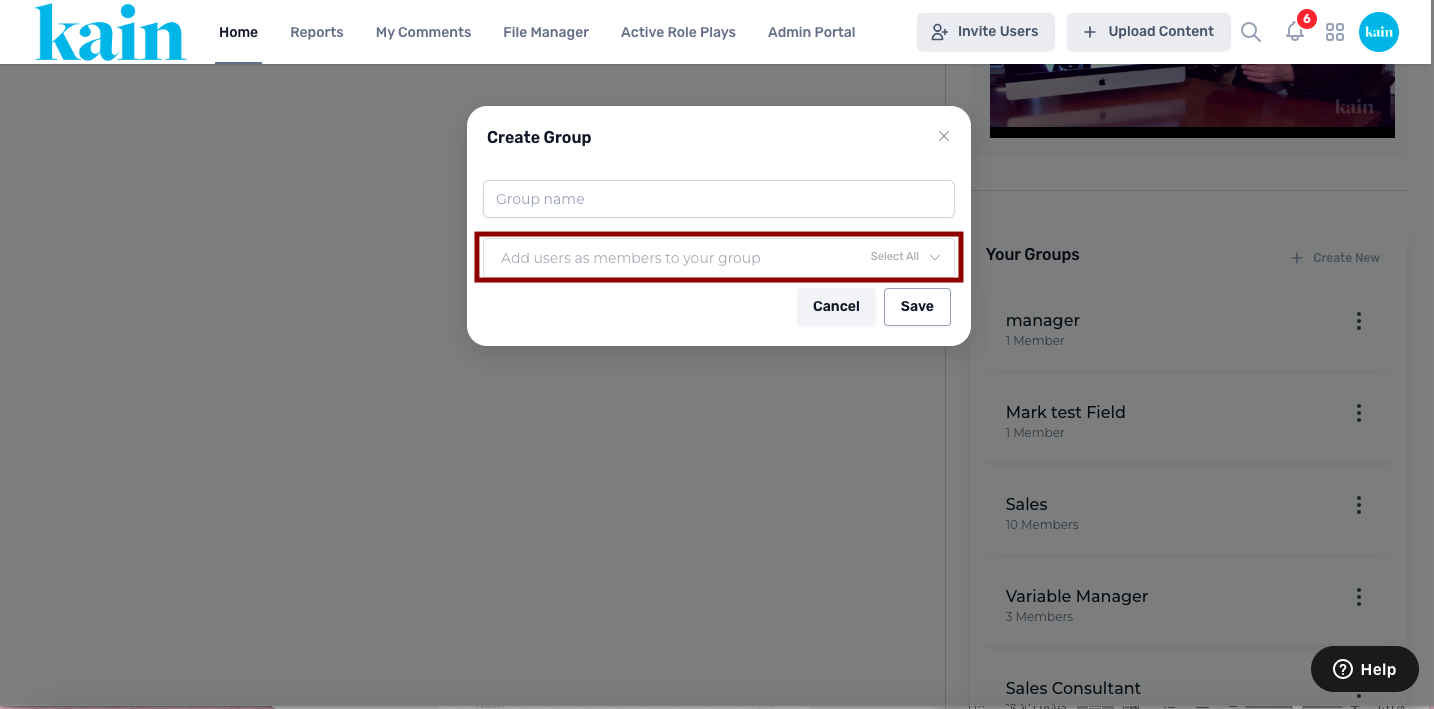
Select users to be members of the group. You can individually choose users or use the "Select All" option to include all available users.
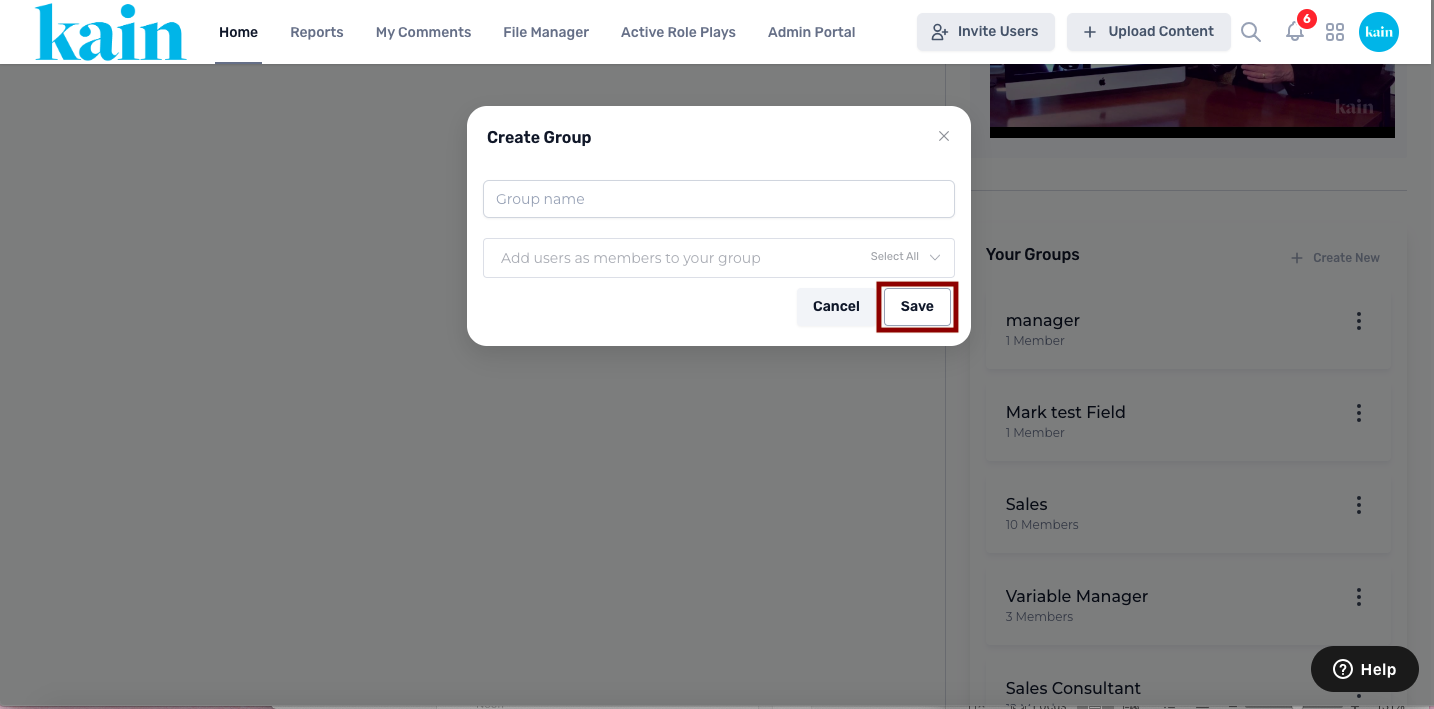
Step 5: Save the Group
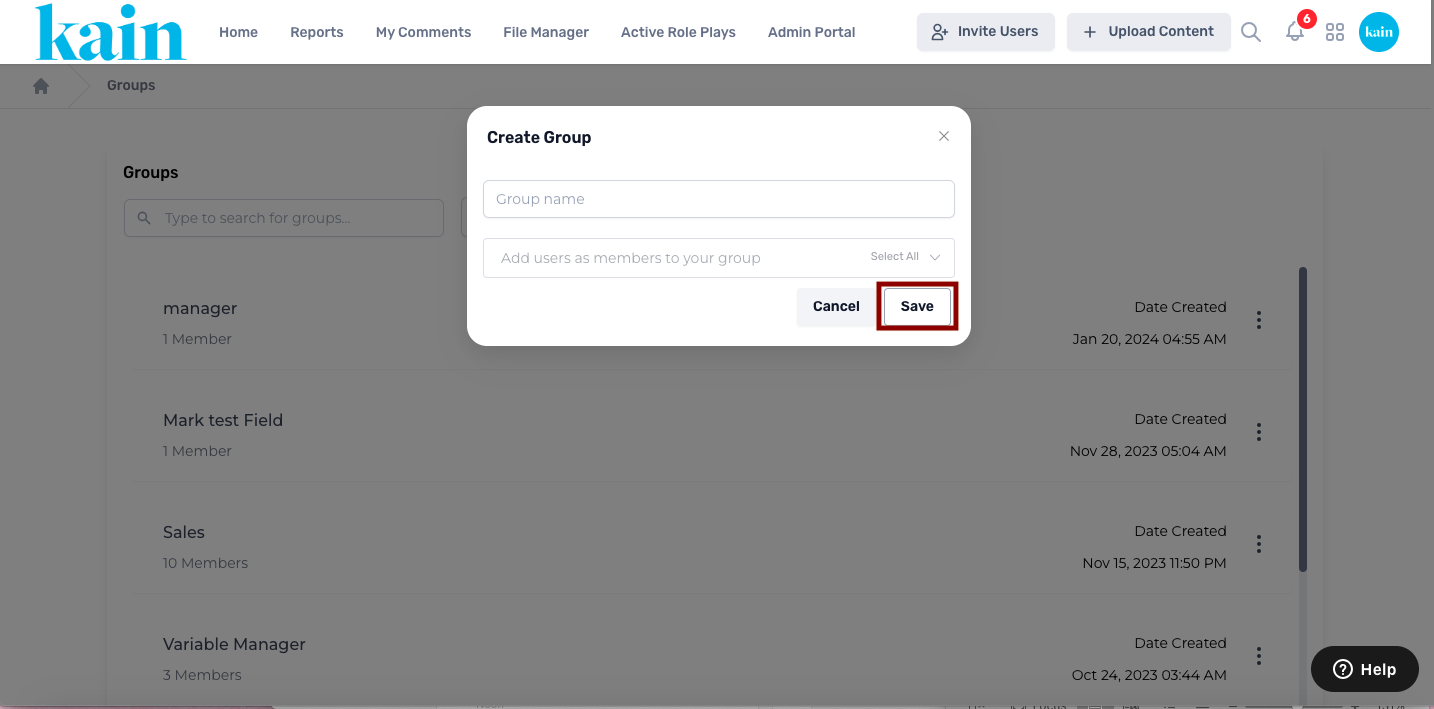
After adding members, click the “Save” button to finalize the creation of the group.
The new group is now accessible on the Dashboard.
Creating a New Group on the Group InterfaceS
Step 1: Access the Group Interface
Log in to your LMS account, and navigate to the Group Interface.
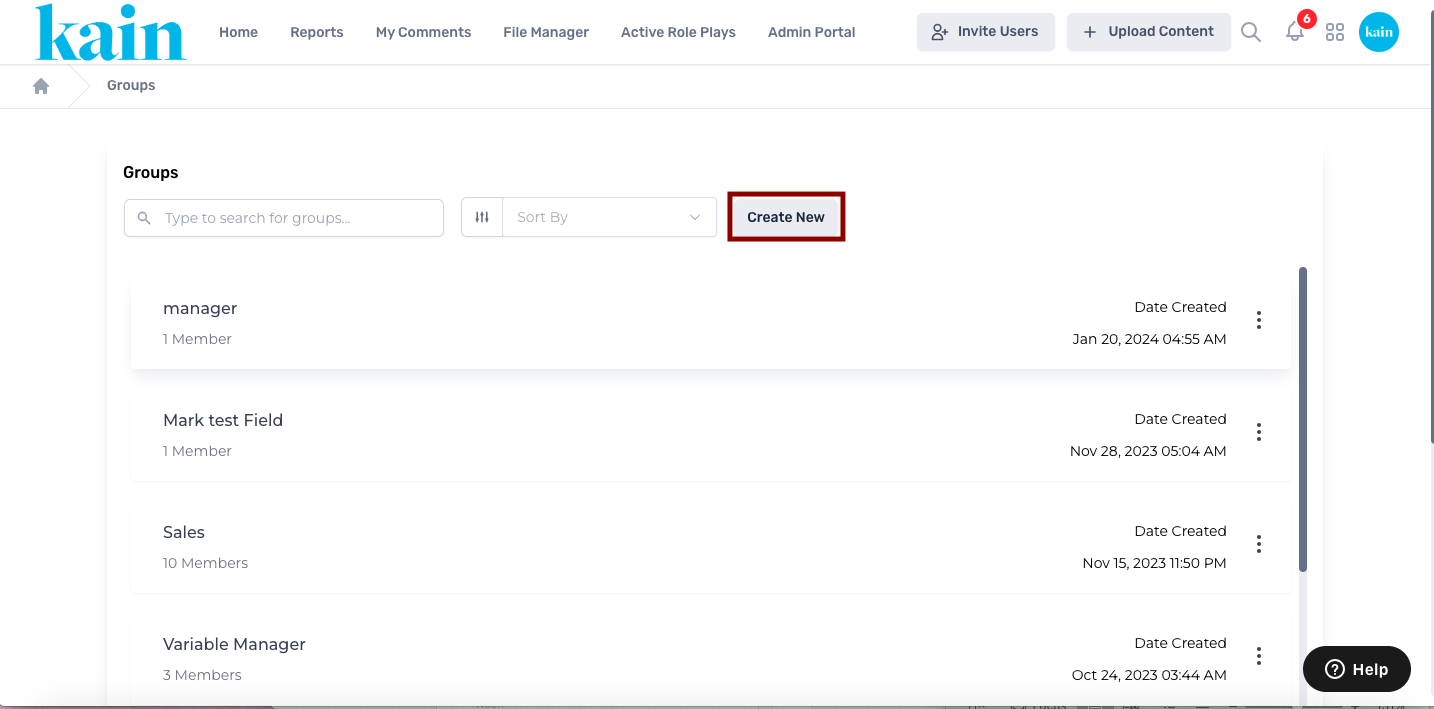
Step 2: Initiate Group Creation
Click on the “Create New” button within the Group Interface.
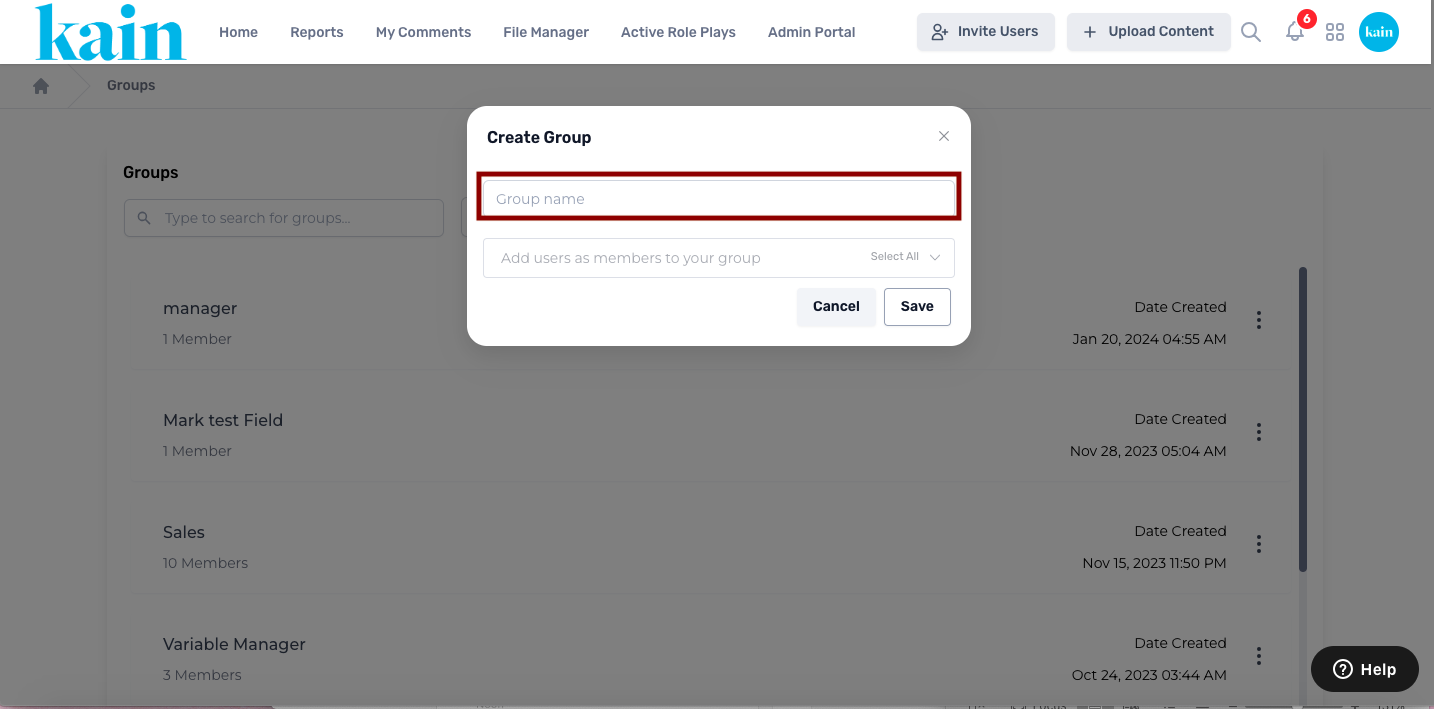
Step 3: Enter Group Details
Provide a concise and meaningful name for the new group in the prompted field.
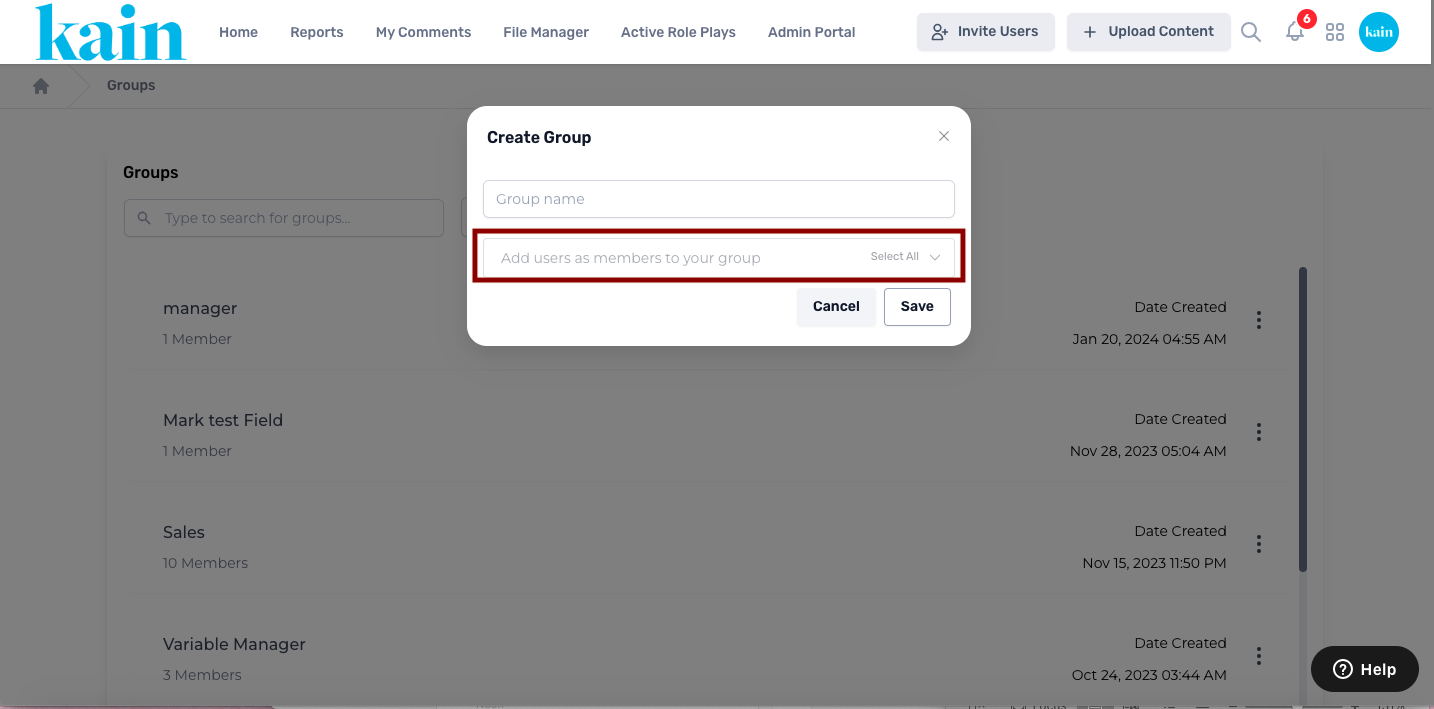
Step 4: Add Users as Members
Select users to be members of the group. Use the "Select All" option if you want to include all available users.
.png "Screen Shot 2024-02-29 at 2.44.44 PM(1).png")
Step 5: Save the Group
After adding members, click the “Save” button to complete the group creation.
The new group is now accessible within the Group Interface.