Visiting Groups
Visiting groups within your LMS is a crucial step for administrators and instructors to gain insights into group details, including its creation information, members, and assigned learning materials. This step-by-step guide will walk you through the process of efficiently visiting groups on the Groups Interface.
Step 1: Accessing Group Details
Start by logging into your LMS account using your credentials.
Access the Groups Interface from the Dashboard.
Click on the “View All” button to go to the Groups Interface.
.png "Screen Shot 2024-02-29 at 2.29.03 PM(1).png")
Step 2: Search for the Group
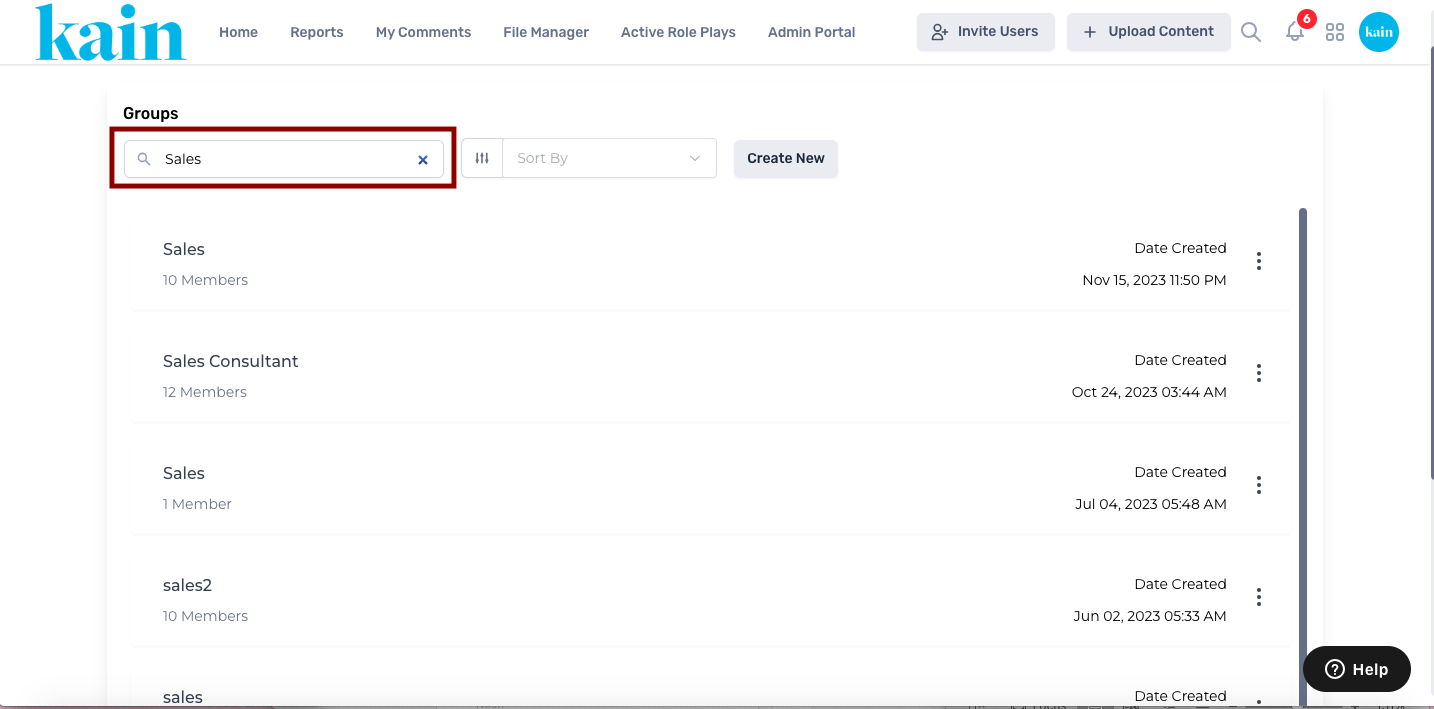
On the Groups Interface, locate the group you wish to visit.
Enter the name of the group in the Search Bar for quicker access.
Step 3: Choose "Visit Group"
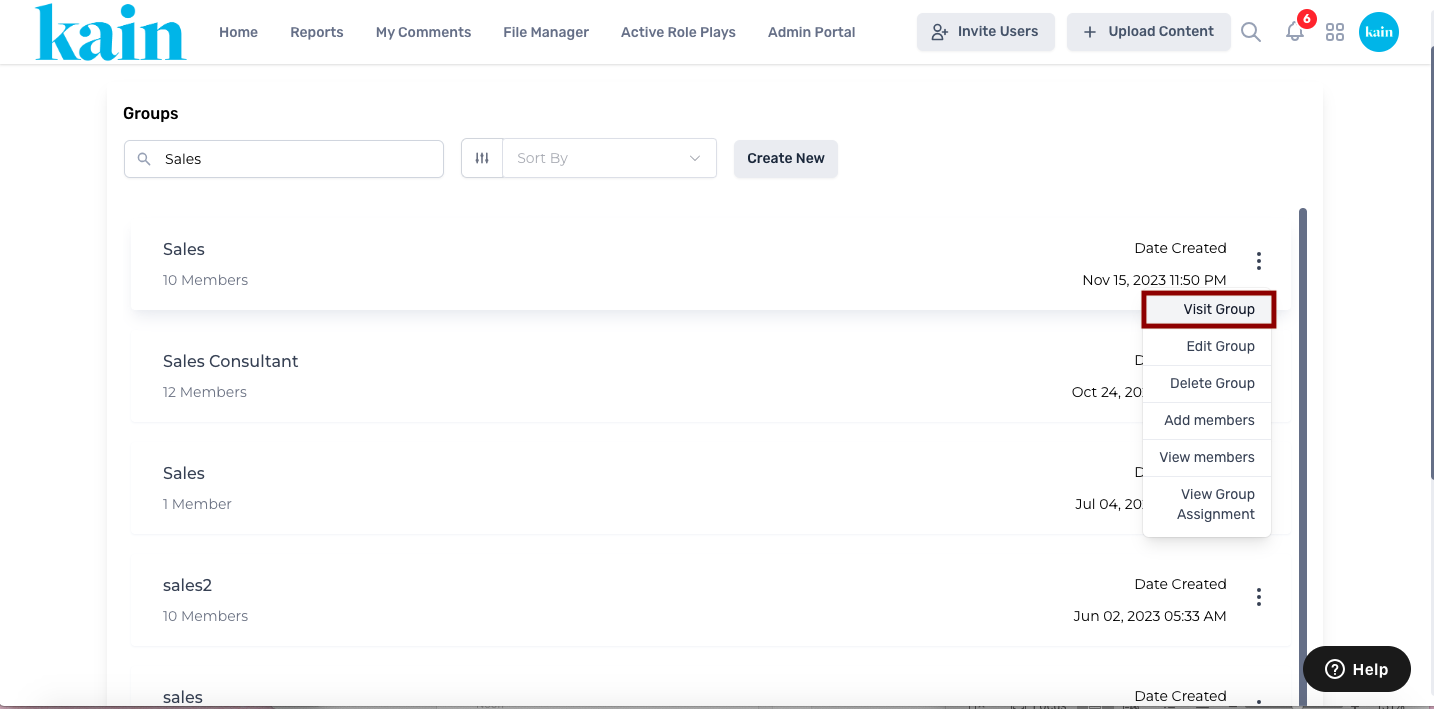
Click on the kebab menu (three dots) next to the group you want to visit.
From the dropdown menu, click on the "Visit Group" option.
Step 4: Explore Group Details
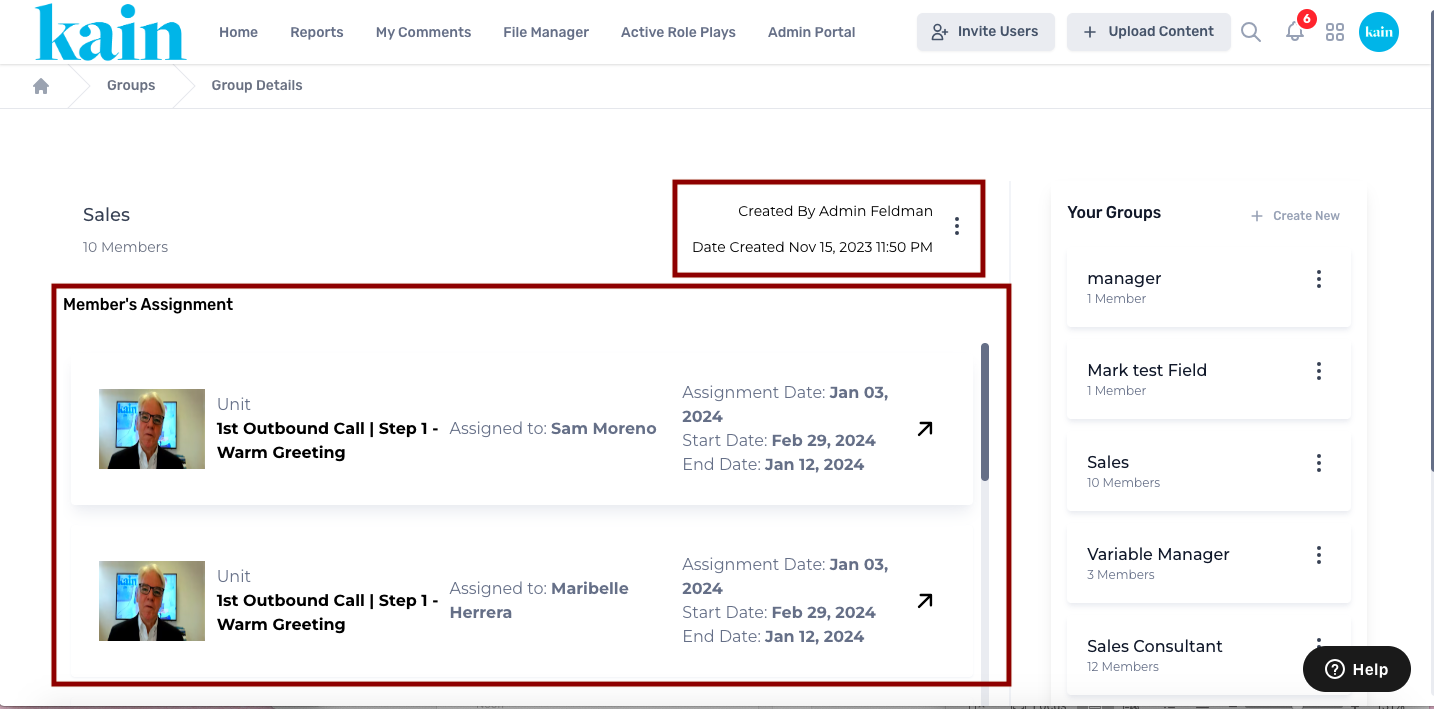
After selecting "Visit Group," you will be redirected to the Group Details page.
Explore the various details available, including:
Group Creator: Identify who created the group.
Creation Date: Determine when the group was created.
Members: View the list of members within the group.
Assigned Learning Materials: Check the learning materials assigned to group members.