Viewing Groups
Viewing groups within your LMS is essential for staying organized and facilitating effective collaboration among learners.
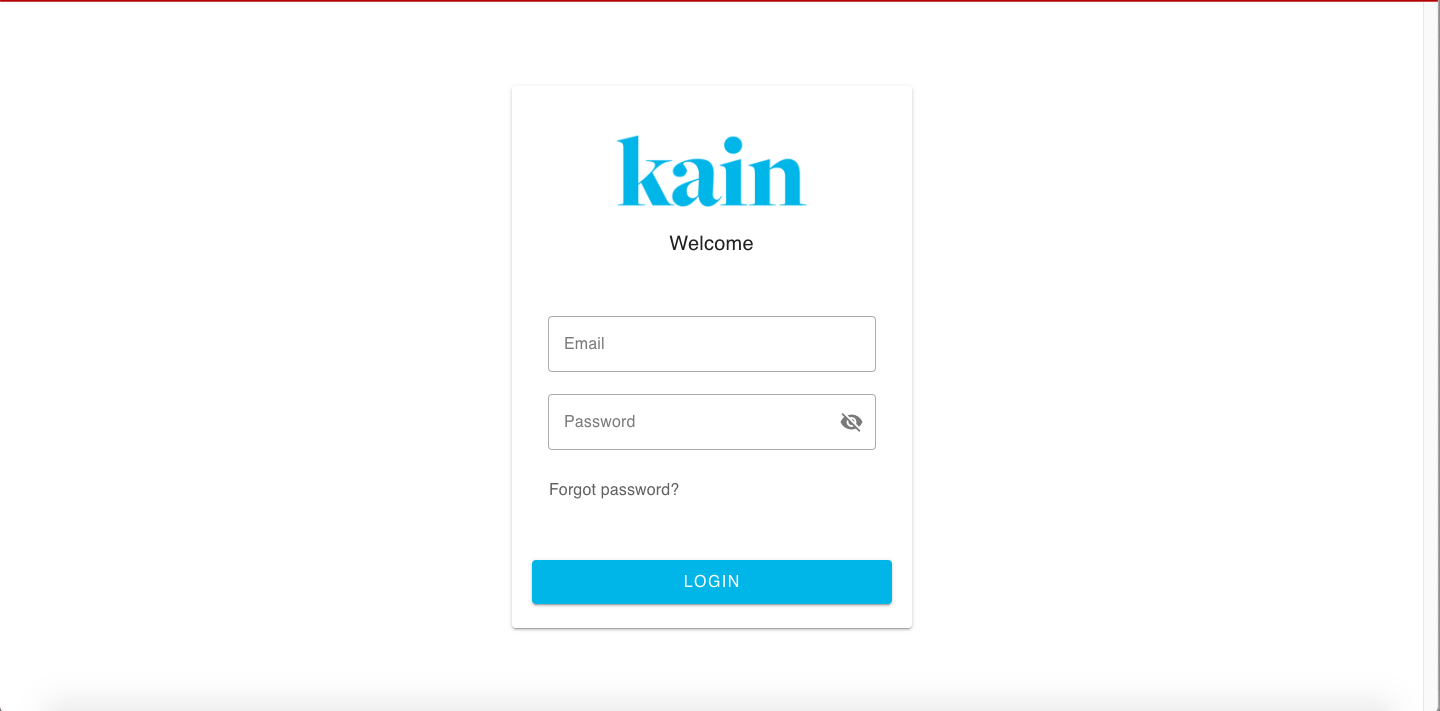
Step 1: Log In
Start by logging into your LMS account using your credentials.
Once logged in, you will be redirected to the LMS Dashboard.
Step 2: Navigate to Groups Section
Scroll down on the Dashboard to find the "Your Groups" section.
This section typically displays groups that you are a part of or have access to.

Step 3: Click "View All" Button
To view all groups available in your LMS, locate and click the “View All” button.
This button is usually present within the "Your Groups" section.

Step 4: Explore Groups Interface
After clicking "View All," you will be redirected to the Groups Interface.
This interface provides an overview of all existing groups within the LMS.

Step 5: Search Specific Groups
To find specific groups, utilize the search bar within the Groups Interface.
Enter the name of the group you're searching for.
.png "Screen Shot 2024-02-29 at 2.29.53 PM(1).png")
Step 6: Sort Groups
Groups can be sorted for easier navigation:
A-Z: Arrange groups alphabetically from A to Z.
Z-A: Arrange groups alphabetically from Z to A.
Latest: Display the latest or most recently created groups.
Oldest: Display the oldest or earliest created groups.
.png "Screen Shot 2024-02-29 at 2.30.04 PM(1).png")