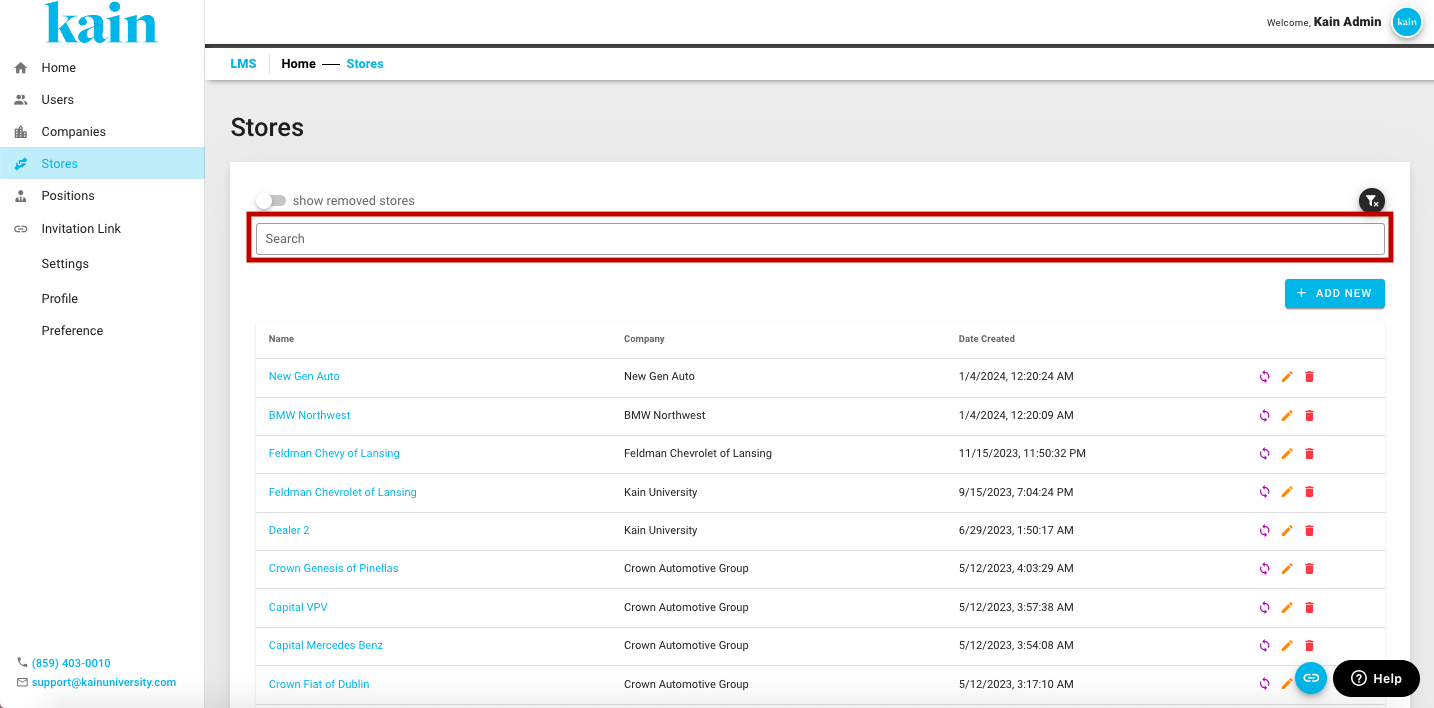
Viewing List of Stores
Efficiently accessing and reviewing store information is crucial for administrative oversight and managing organizational data your LMS. This section provides a guide on how to view store details.
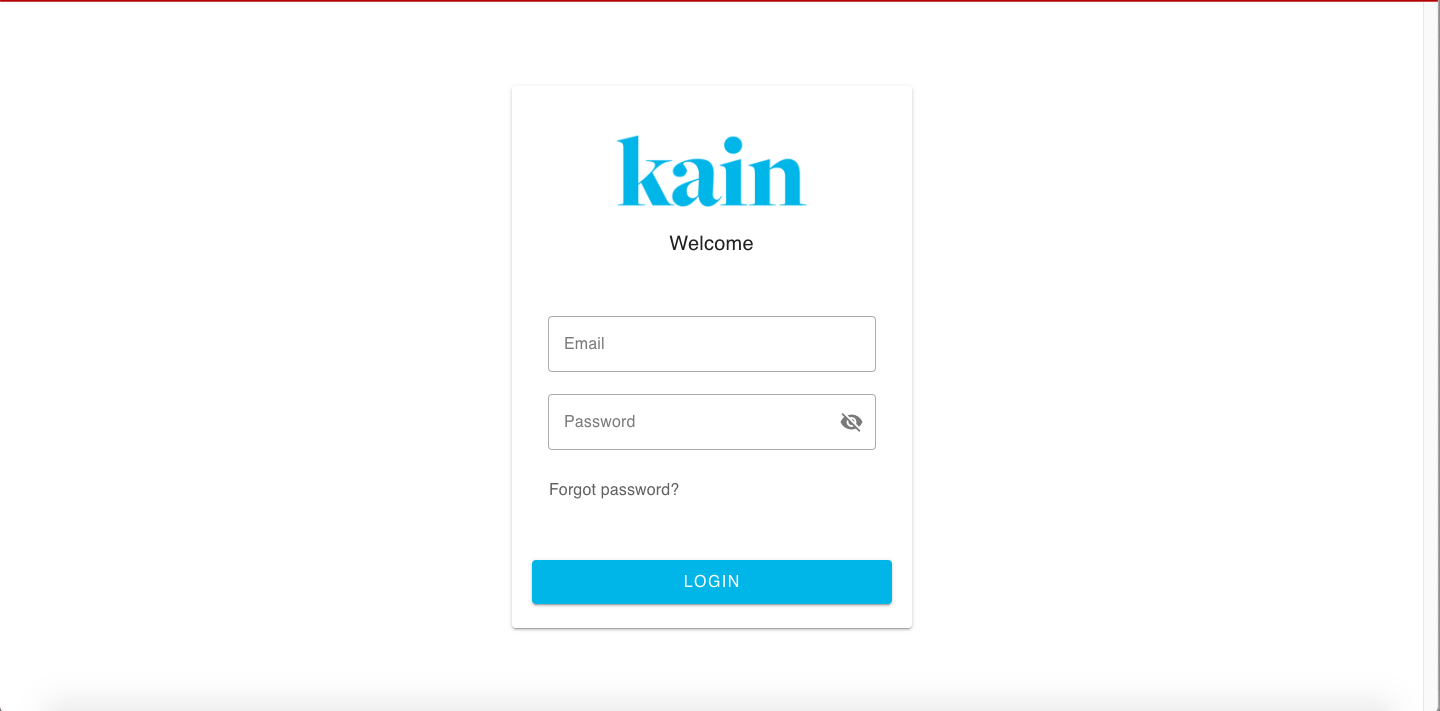
Step 1: Log In to Your LMS Account
Open your preferred web browser and navigate to the LMS website.
Enter your login credentials (username and password) to access your account.
Step 2: Navigate to User Management Section
Once logged in, locate the “Admin Portal” section on the top navigation bar of the LMS dashboard.
On the dropdown menu, click on “Manage Users”.
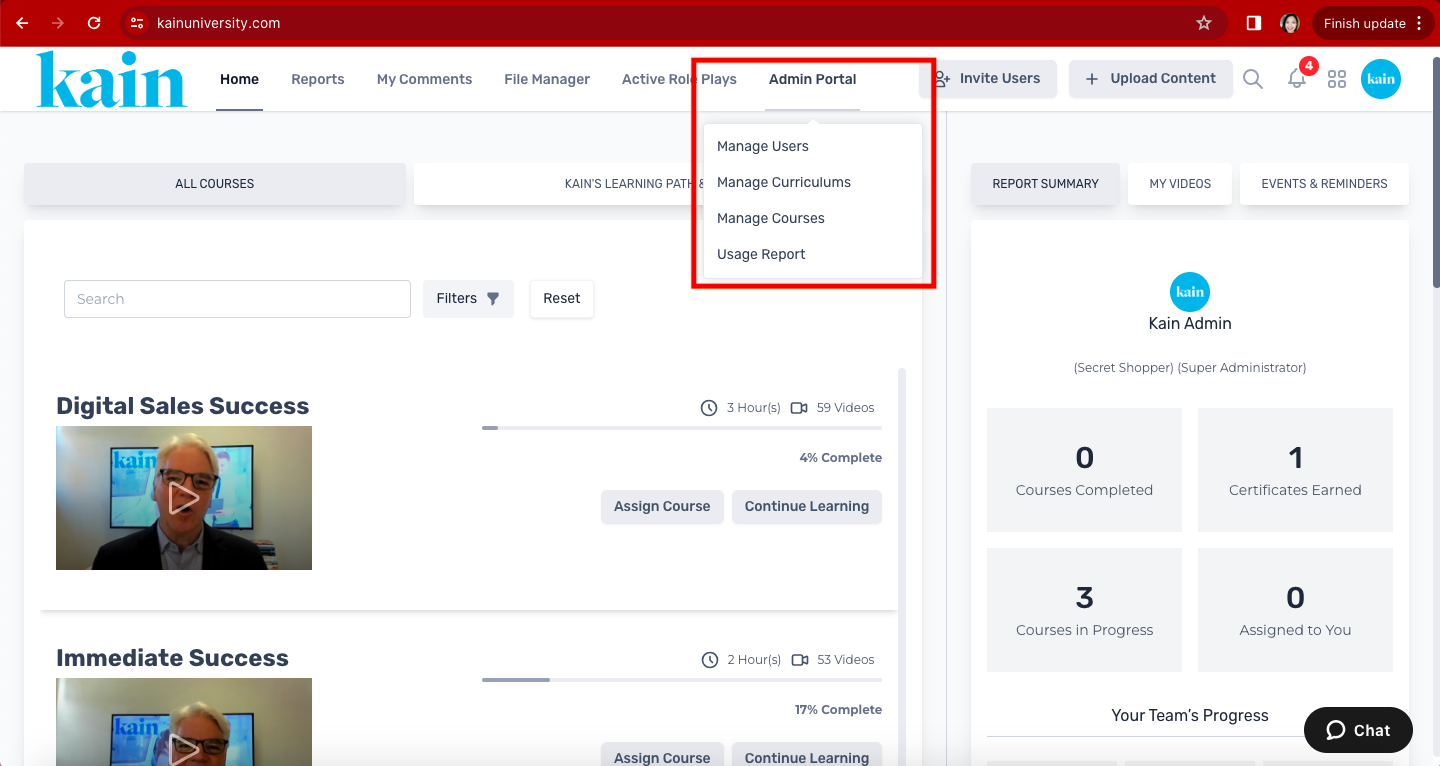
A new tab will open to the User Management Interface.
On the sidebar, click on “Stores”.
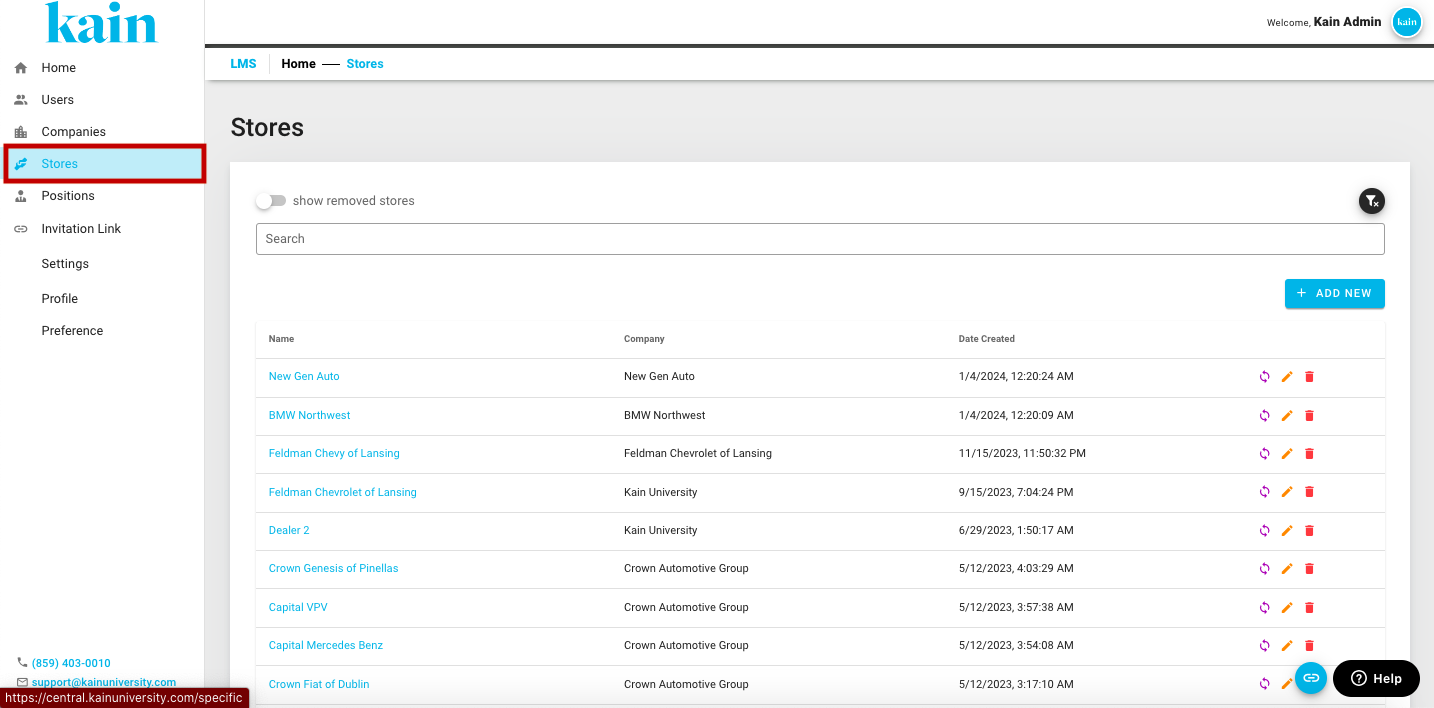
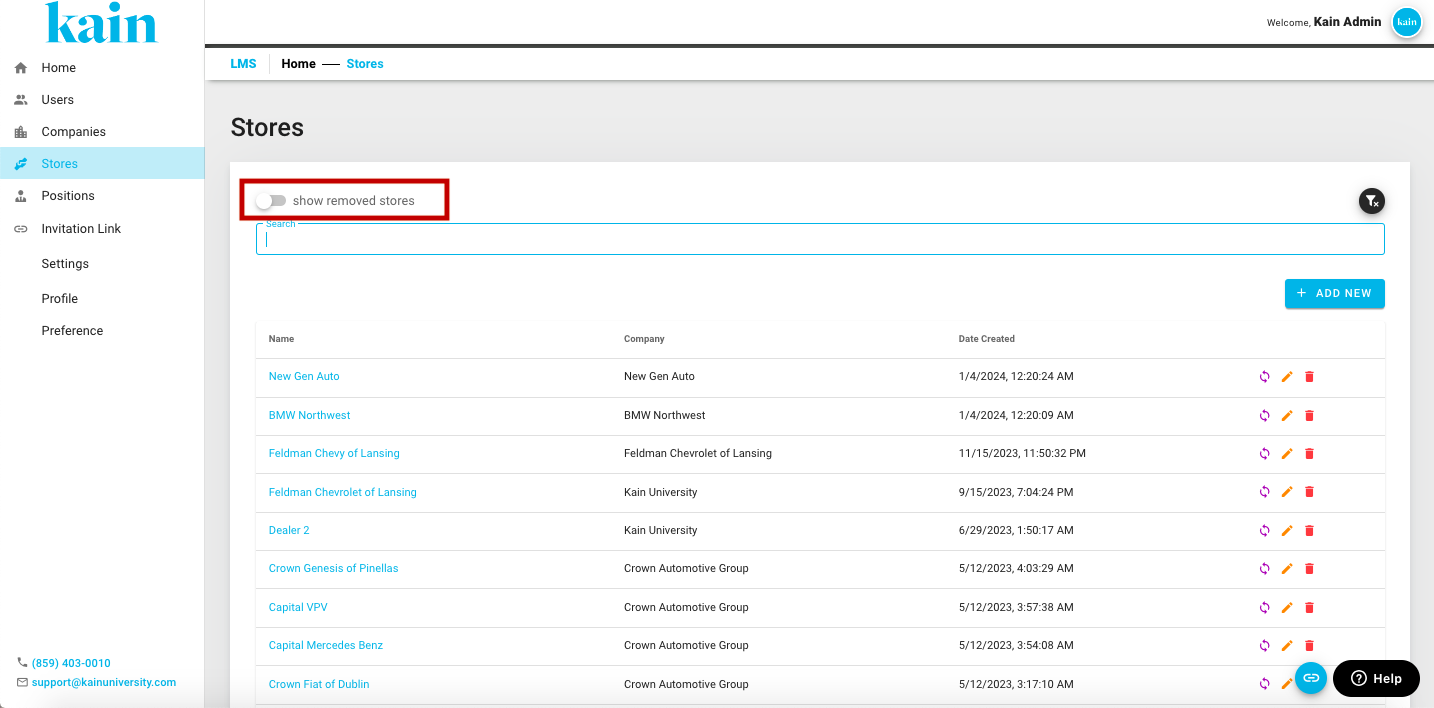
Step 3: Toggle "Show Removed Stores" On/Off
Utilize the option to toggle the display of removed stores on and off, depending on your preference.
Step 4: Use the Search Bar
Locate the search bar within the company list interface.
Enter the name or specific details of the company you want to find.
The list will dynamically update to display relevant results.