Uploading New Videos
Videos can be added to the LMS via the Dashboard. Here’s how to do it:
Step 1: Access Your Dashboard
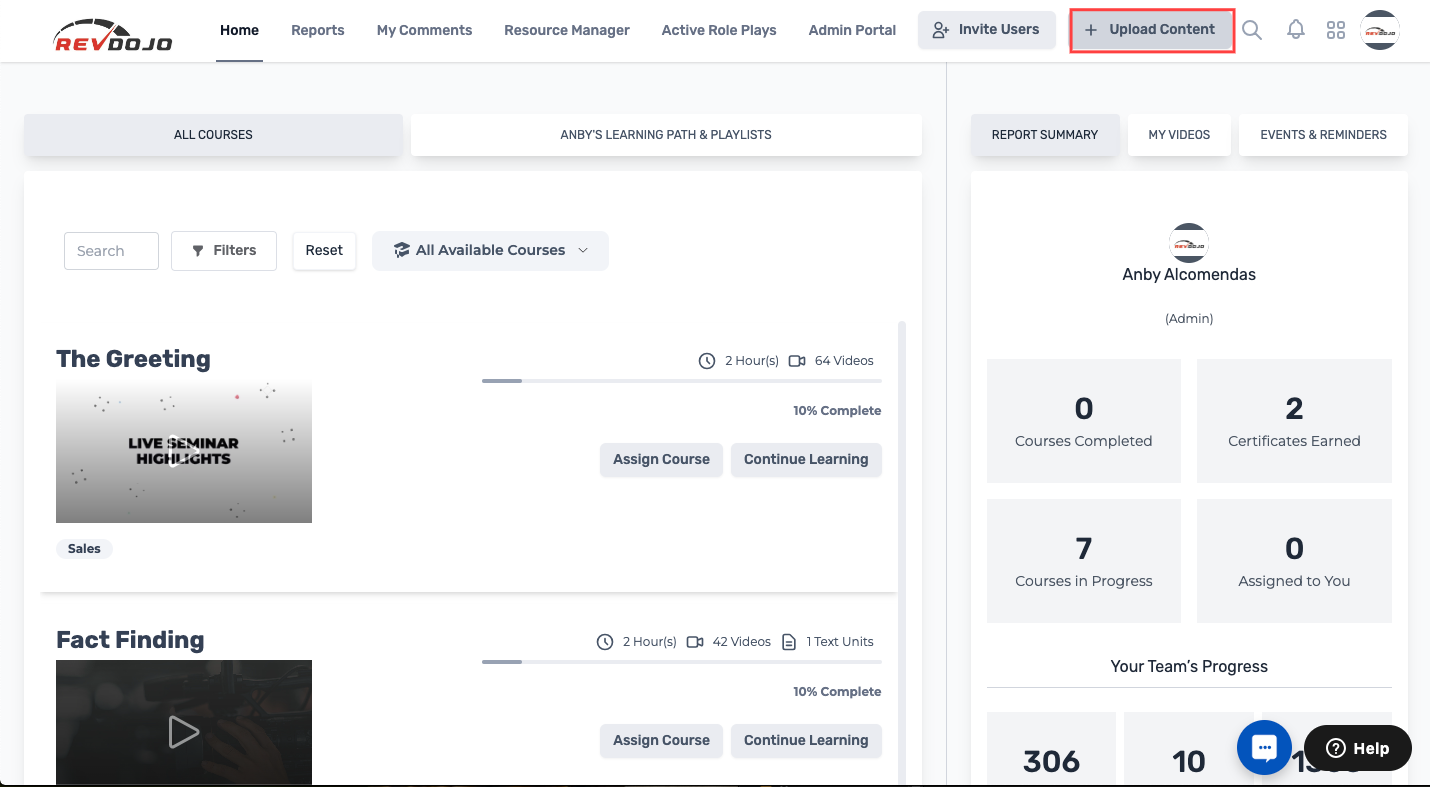
On the upper part of the screen, locate and click on the “Upload New Content” button.
Step 2: Enter the Details of the New Content
On the pop-up window, enter the Unit Name.
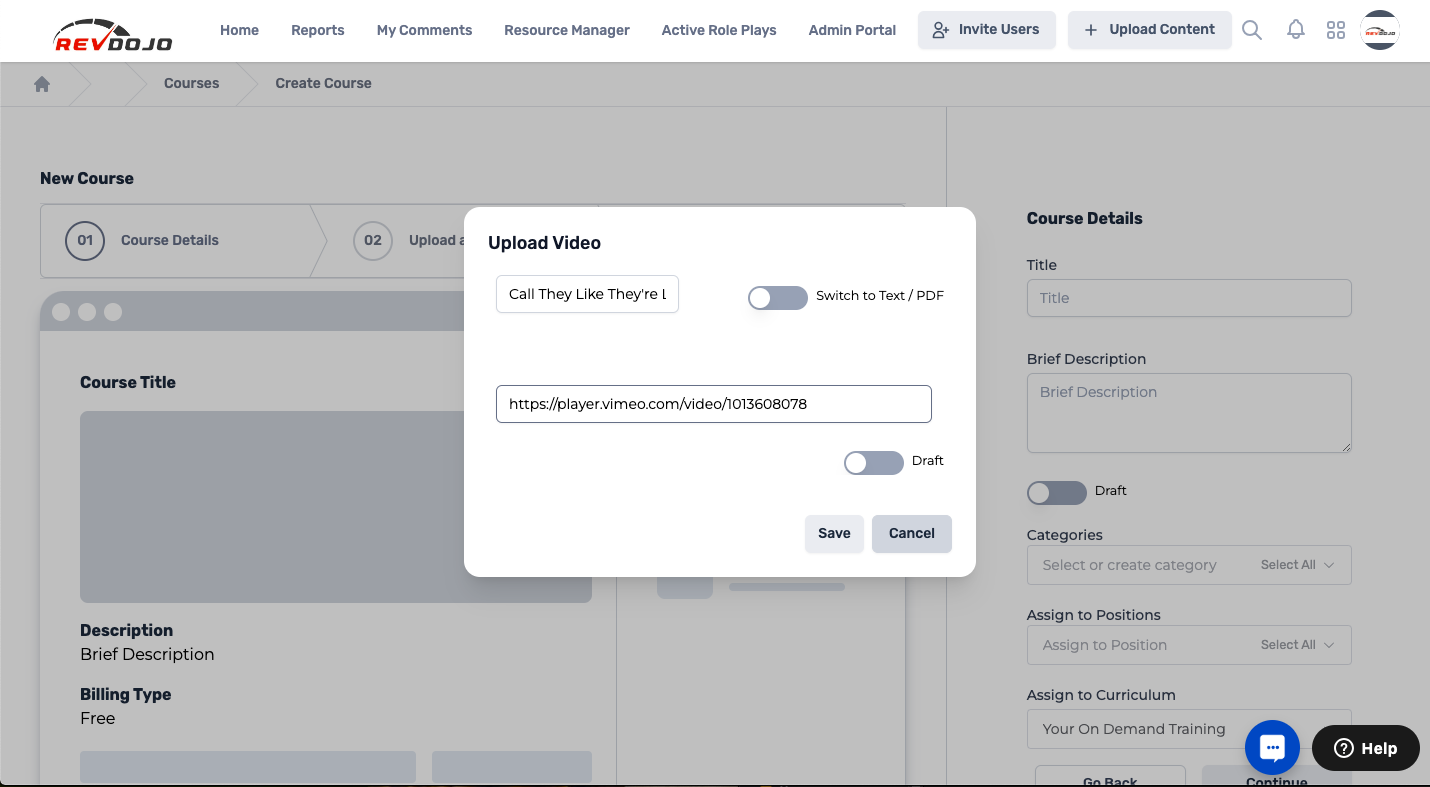
Drag and drop a video file from your computer or click the grey box to browse your computer for the file. Accepted files are MPF, MOV, and MKV.
If you wish to upload a PDF file or enter plain text, click on the “Switch to Text / PDF” button.
Click on the “Upload PDF File” button or enter the text on the box provided.
If you wish, you can set the Unit to draft by clicking on the “Draft” button.
Click on the the “Save” button on the bottom of the window. You will be redirected to a new page where you can enter details for each Unit.
Step 3: Unit Details
On the left hand side of the screen, fill in the required details for the new Unit (e.g., Unit Name, Status, Description, Tags, Related Resources, and a Quiz for the Unit.
On the right hand side of the screen, configure additional settings (e.g., Start/End dates, Users, Groups, or Stores to assign the Unit). You can also assign the Unit to a Playlist and/or add it to a specific Course or Module.
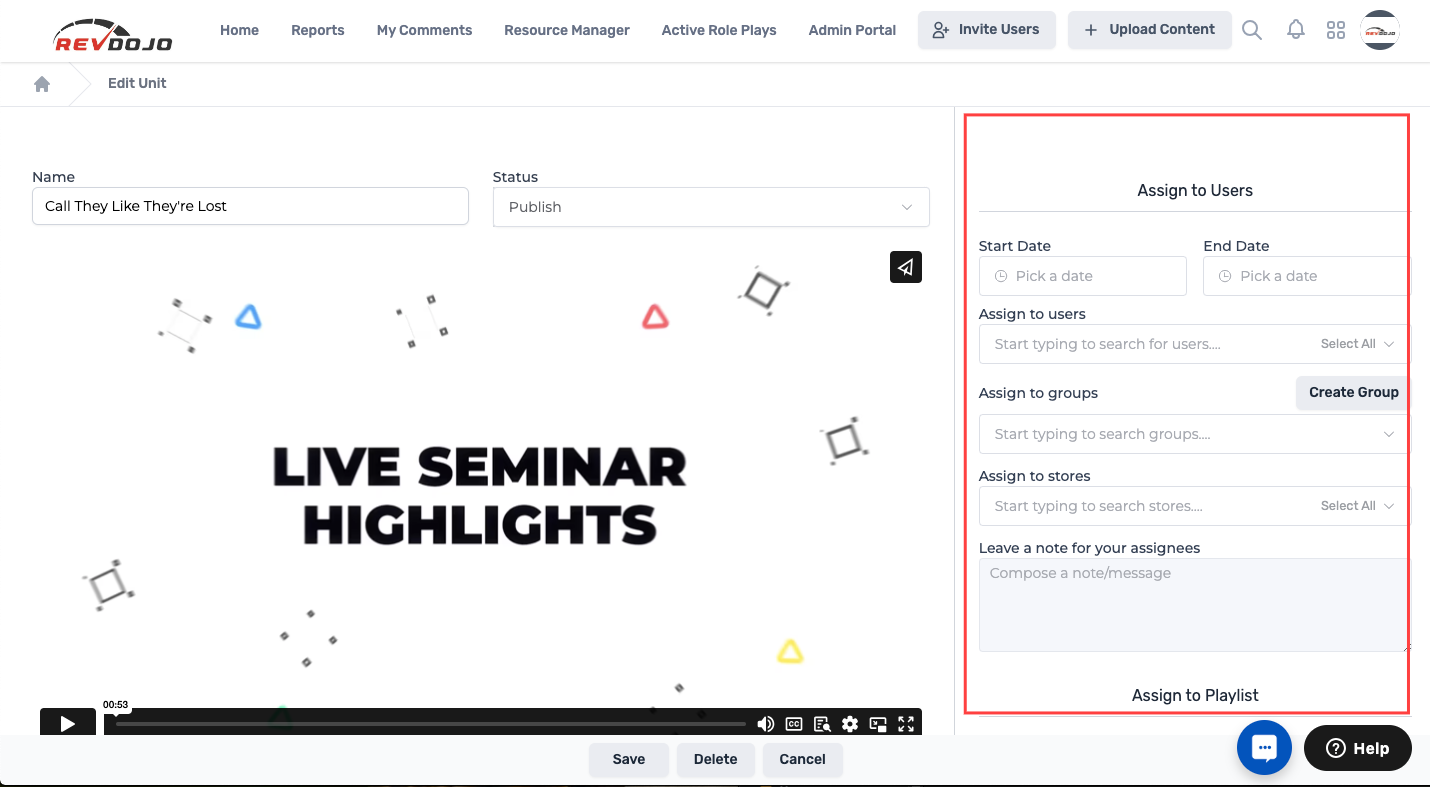
Click on the “Save” button on the bottom part of the screen.