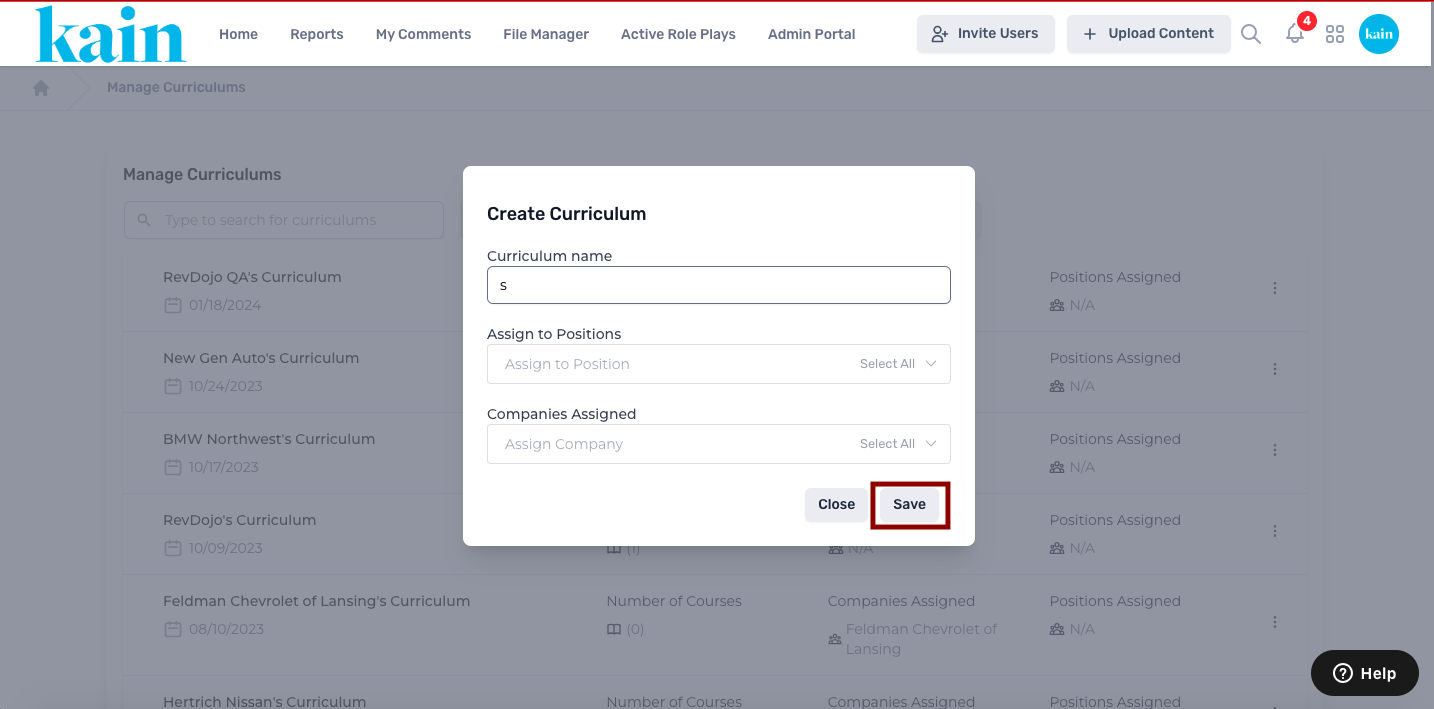
Creating a New Curriculum
Creating a new curriculum in your LMS is a fundamental step to provide targeted and organized learning paths.
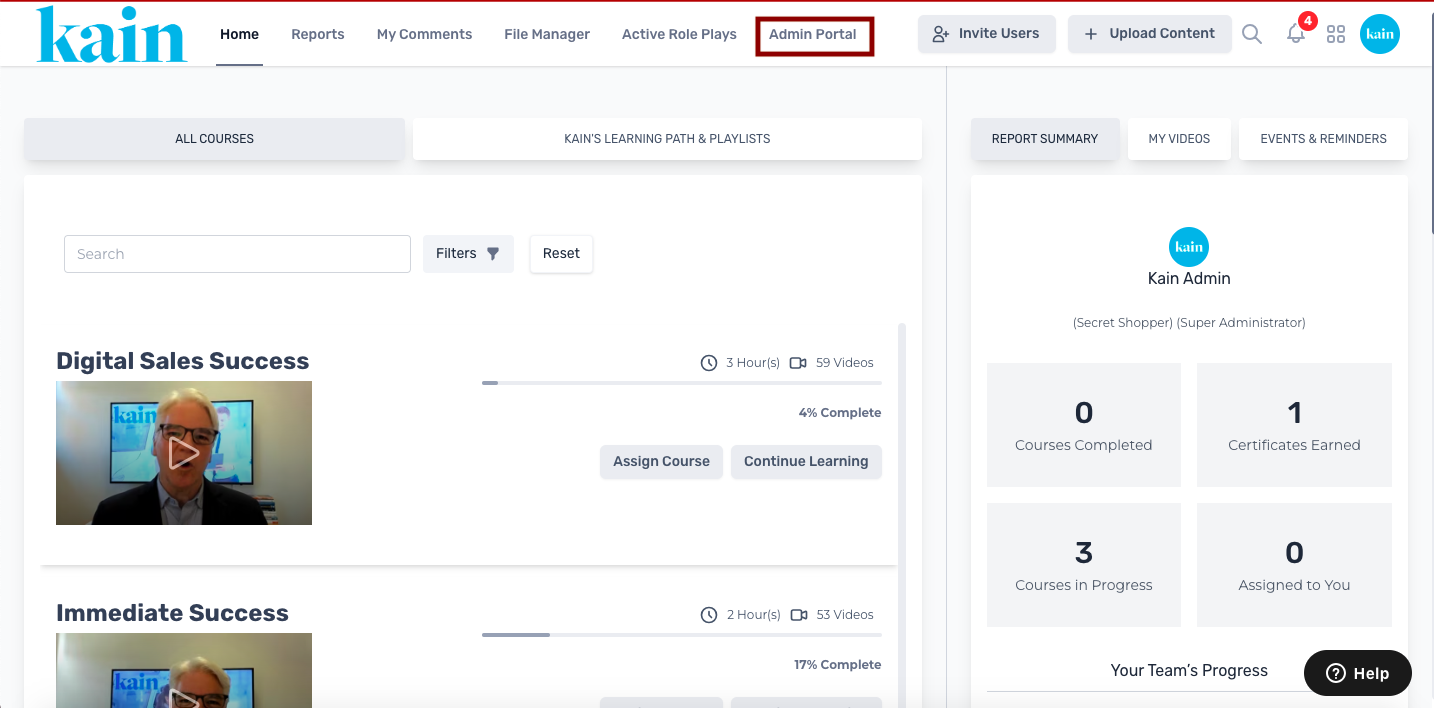
Step 1: Access the Admin Portal
Log in to your LMS account and navigate to the Admin Portal section.
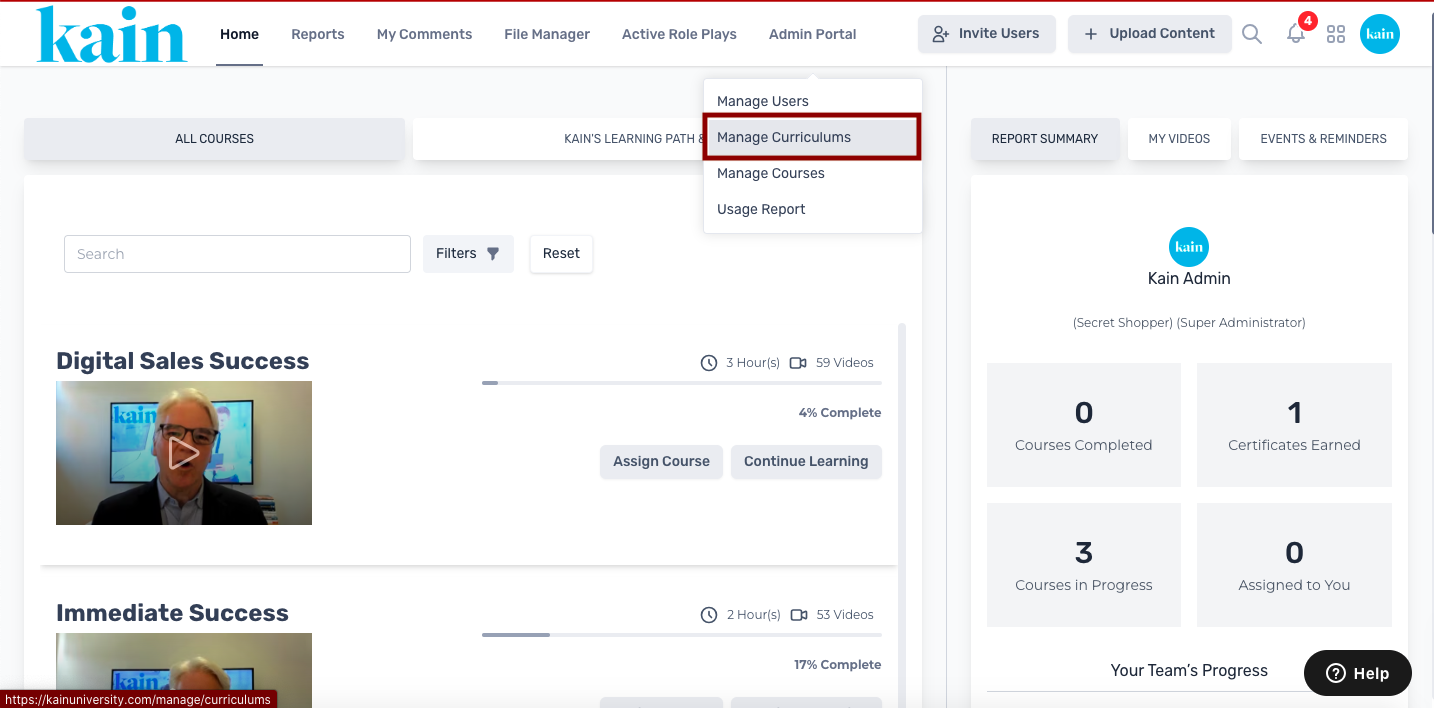
Step 2: Choose "Manage Curriculums"
From the dropdown menu on the Admin Portal, select "Manage Curriculums."
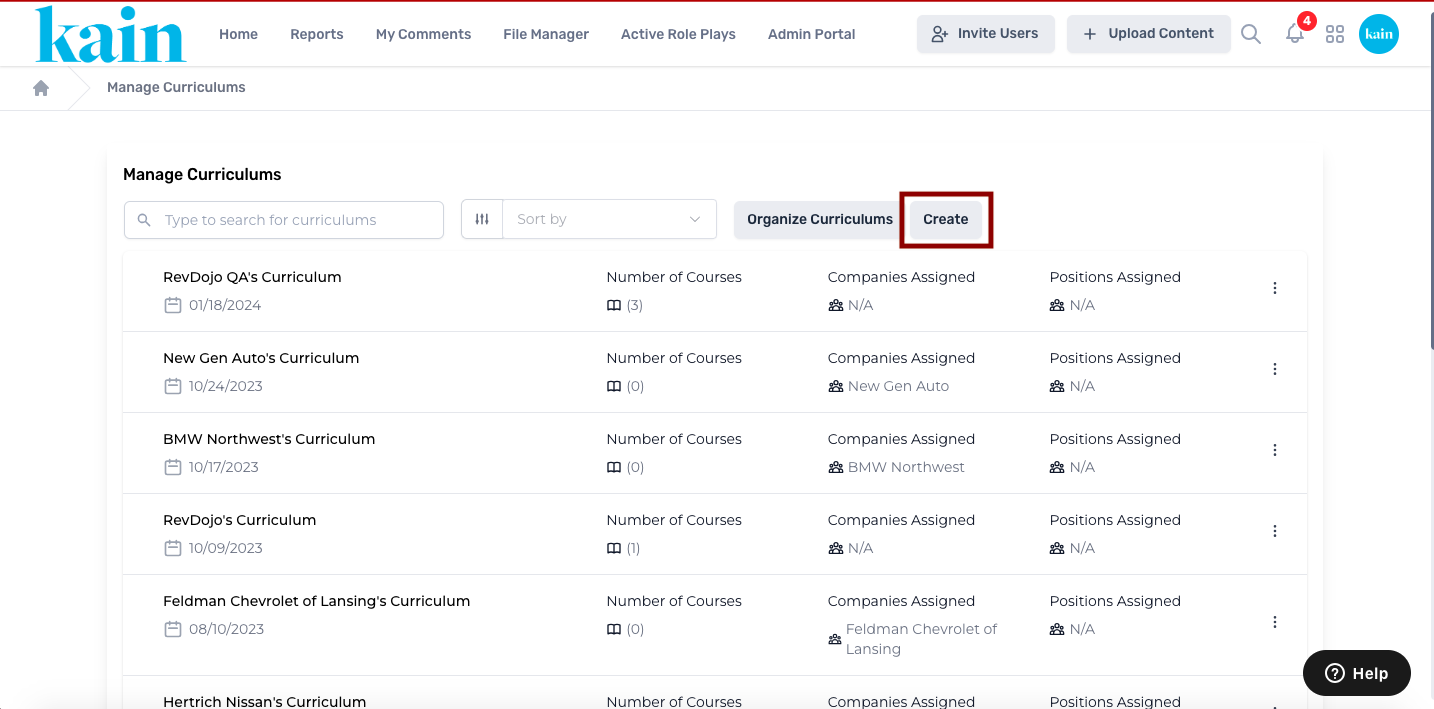
Step 3: Create a New Curriculum
On the Curriculum Management page, locate and click on the “Create” button. This initiates the process of generating a new curriculum.
Enter the Curriculum Details:
Curriculum Name: Provide a meaningful name for the new curriculum.
Assign to Positions: Specify the positions or roles for which this curriculum is relevant.
Assign to Companies: Choose the companies to which this curriculum is applicable.
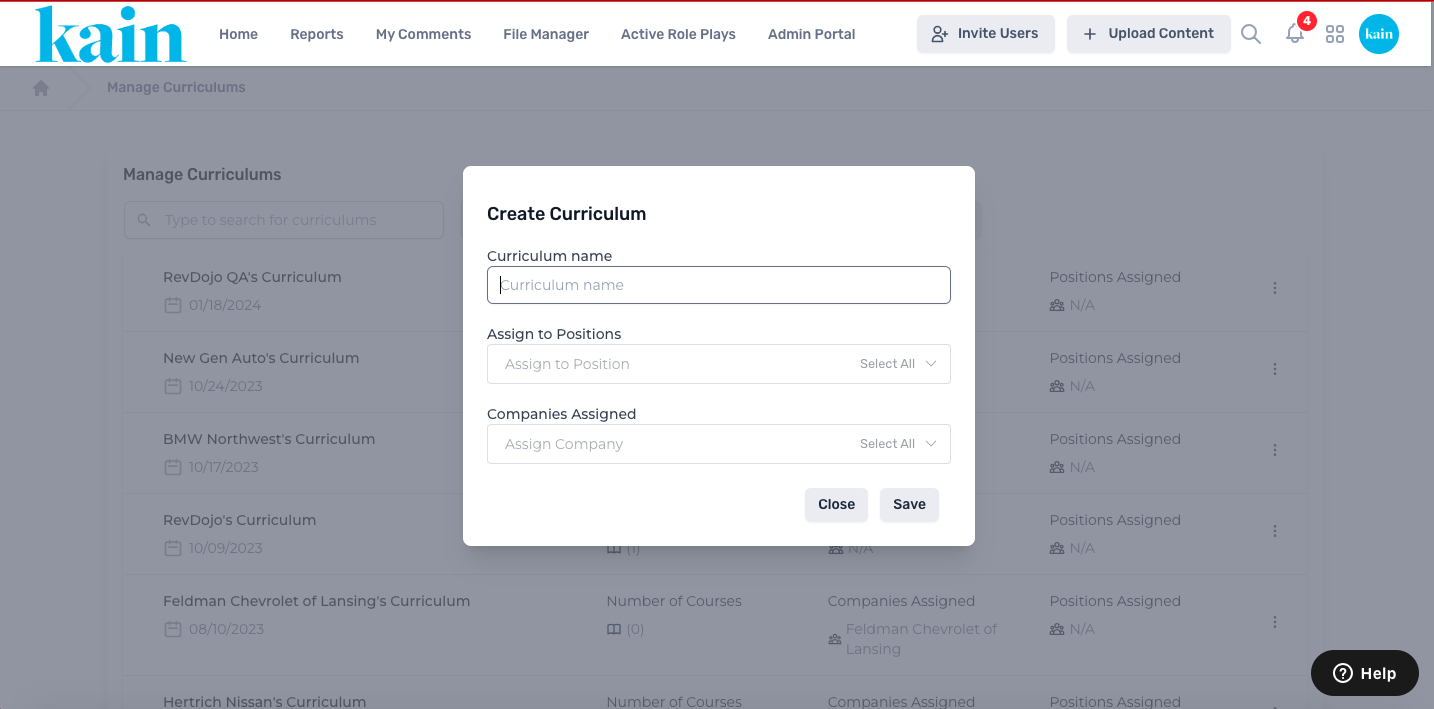
Step 4: Save the Curriculum
After entering the necessary details, click on the "Save" button to store the newly created curriculum.