Assigning a Course to a Group
Editing course details in the LMS is essential for keeping content current and aligned with your organization's goals. Here’s how you can efficiently updating course information.
Step 1: Access Course Management
Begin by logging into your LMS account using your credentials.
Access the Admin Portal section from the main dropdown menu.
Choose the "Manage Courses" option to enter the course management interface.
.png "Screen Shot 2024-02-28 at 1.57.50 PM(2).png")
Step 2: Locate the Course:
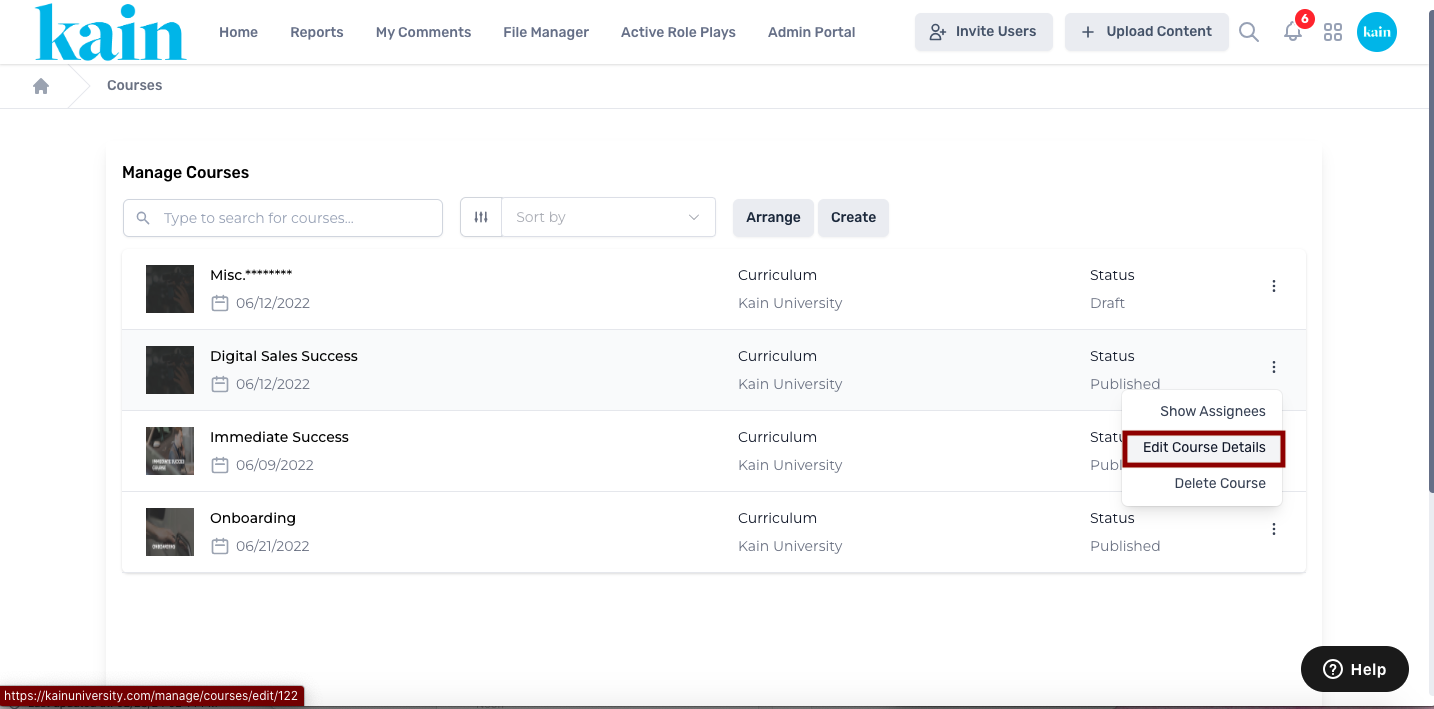
Inside the course management interface, find the course you wish to assign to a group.
Click on the “kebab menu” (three dots) next to the course.
From the dropdown menu, select "Edit Course Details"
This will open the course editing interface.
Step 4: Initiate Assigning to a Group
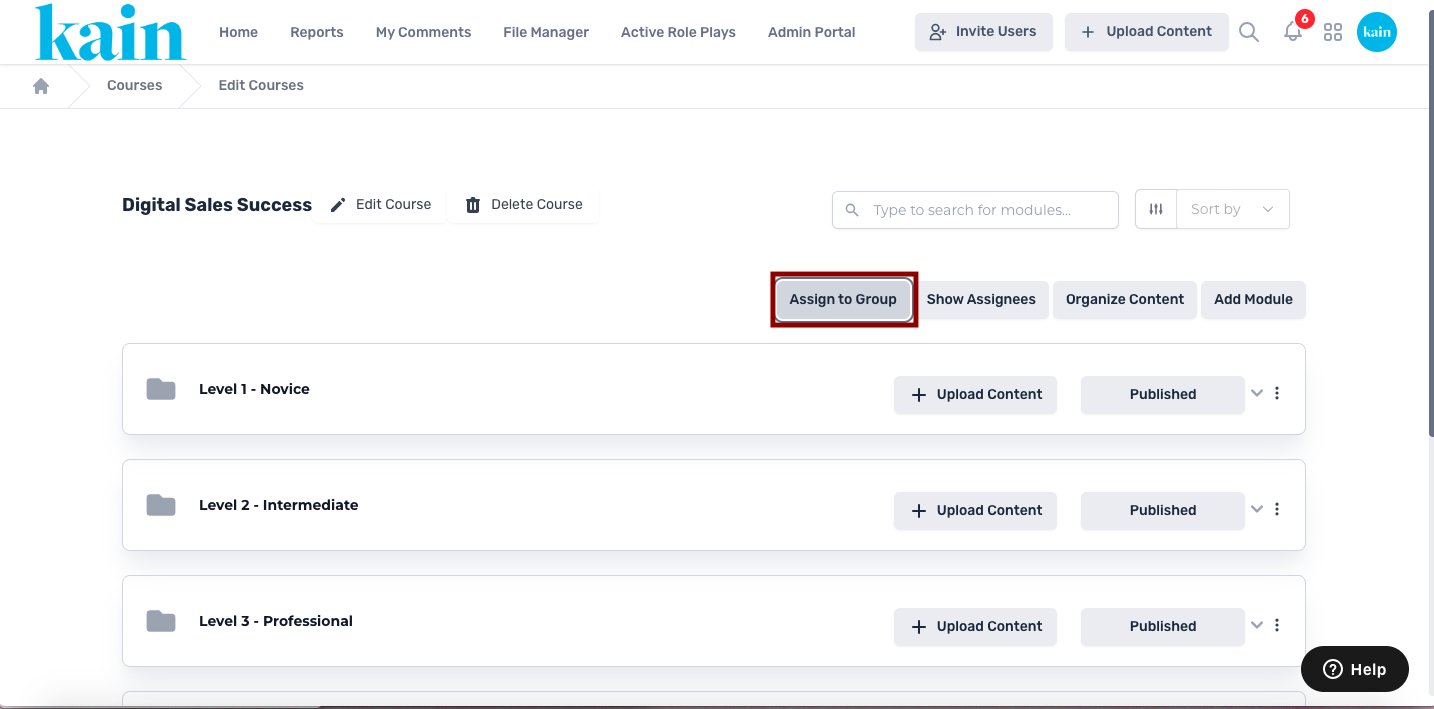
Within the editing interface, click on the "Assign to Group" button
This will open the course assignment interface.
Step 5: Set Start and End Dates:
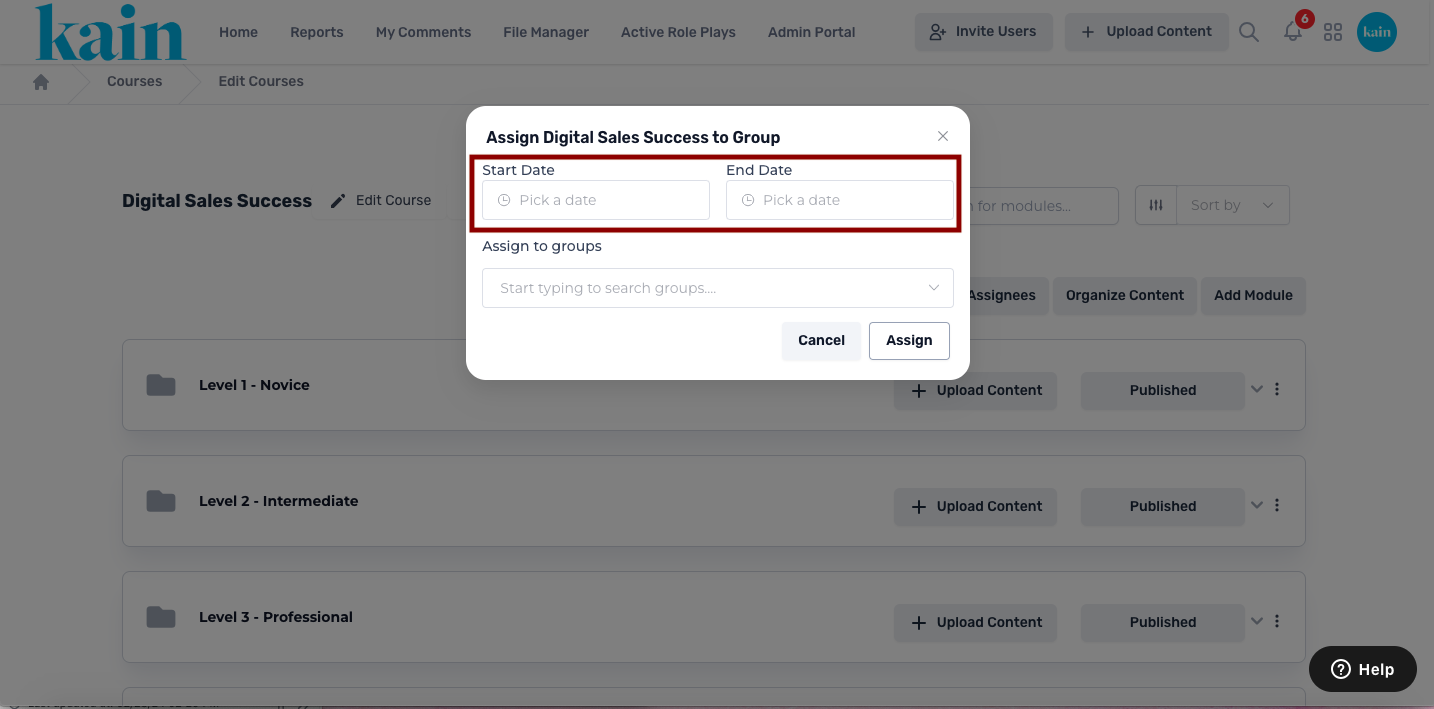
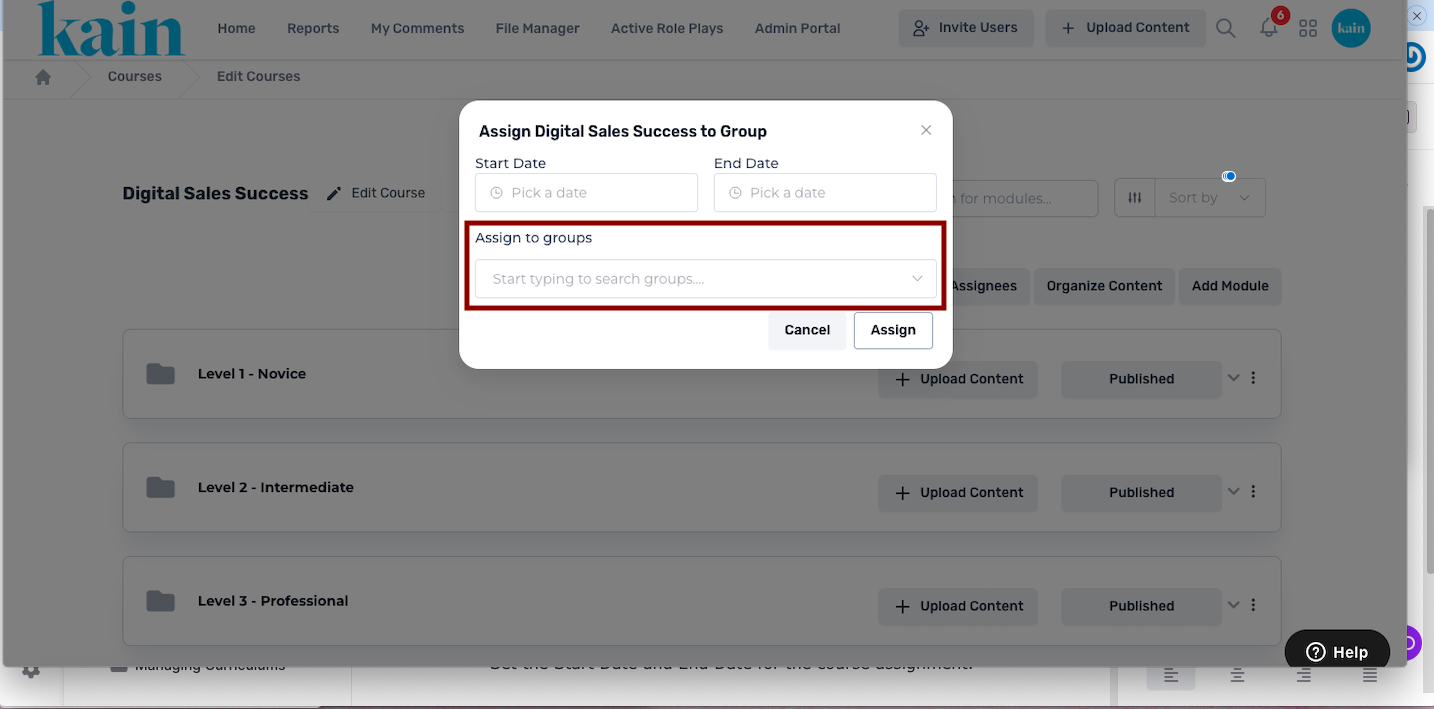
In the assignment interface, a pop-up window will appear.
Set the Start Date and End Date for the course assignment.
Step 6: Pick Groups
On the same pop-up window, use the dropdown menu to pick the groups to which you want to assign the course.
If available, you can also use the "Select All" button for a quick assignment to all groups.
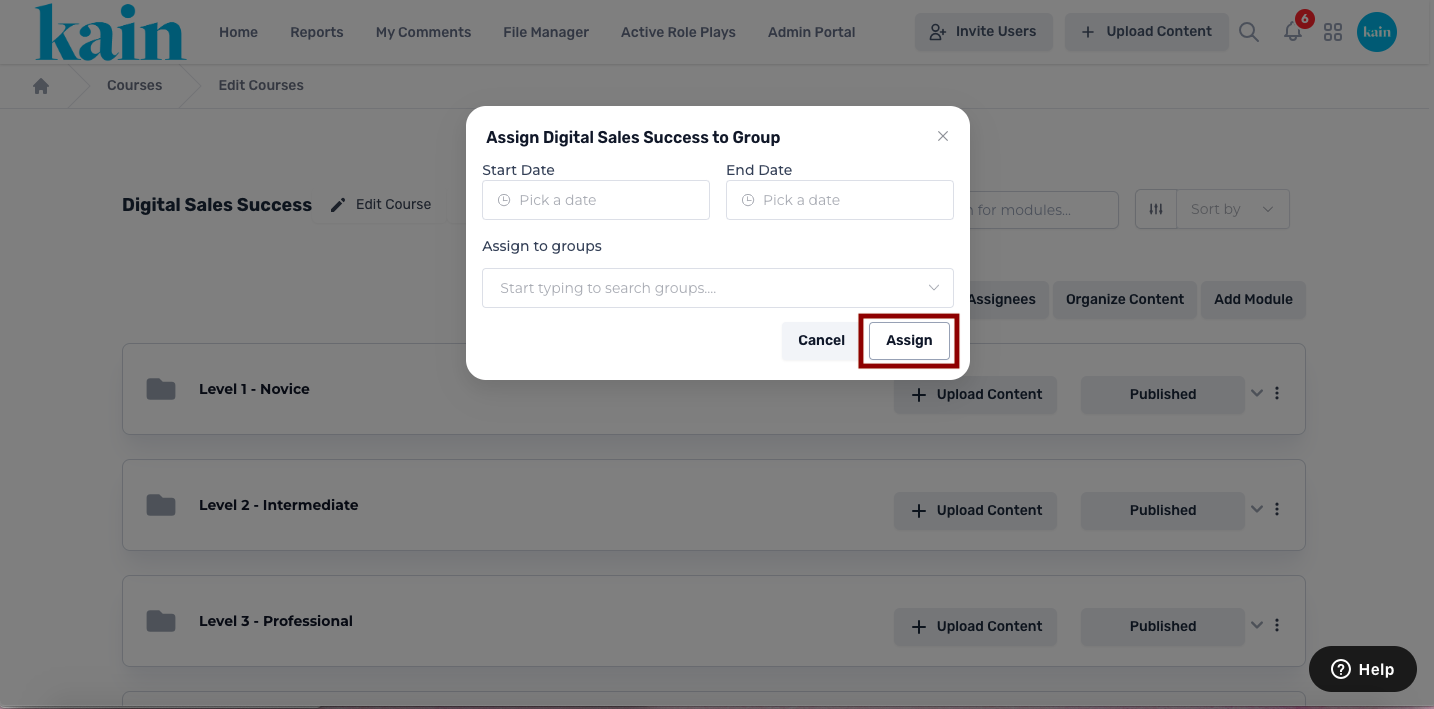
Step 7: Click "Assign" Button
Once you've set the start date, end date, and selected the groups, click on the “Assign” button.
This action finalizes the assignment of the course to the chosen groups.